
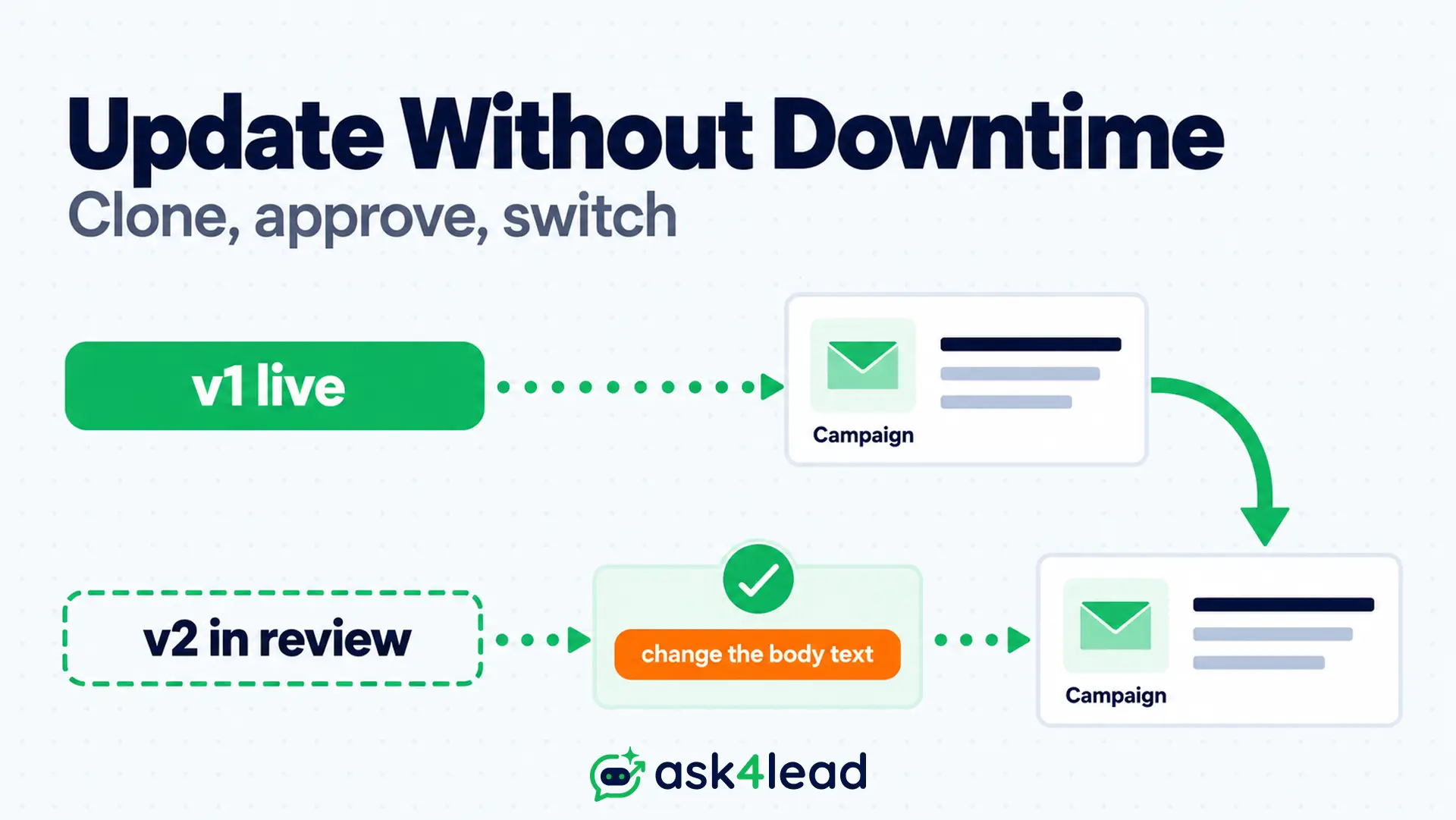
A WhatsApp message template is the pre-approved message a business must send once the 24-hour reply window closes. To update WhatsApp message template content without breaking campaigns, clone WhatsApp template copies instead: rewrite the clone, then move campaigns across after Meta approves it.
Editing the live template directly is allowed. It is capped, though, and some platforms stop every campaign that uses it during review.
Quick answer: To update WhatsApp message template content that feeds automations, clone it, change the body text, test it, then repoint campaigns. Edit WhatsApp template wording in place only for typos. When only data changes, swap variables or media at send time.
Key takeaways
- You can edit WhatsApp template content on an approved template 1 time per 24 hours and 10 times per 30 days, and each edit returns to review.
- When you clone WhatsApp template copies, the body or footer must change, because Meta auto-rejects exact duplicates.
- One added offer or button can turn a utility template into a costlier, less reliable marketing one.
- To update WhatsApp message template content safely, keep a register of where each version is used.
Rules checked against Meta documentation and provider help centres in October 2026.
What Is a WhatsApp Template Update, and Why Does It Break Campaigns?
A WhatsApp template update is any change to an approved template’s body, header, footer or buttons, and Meta reviews it again.
What happens to live sends during that review depends on your platform, so check your tool before you update WhatsApp message template content.
Edit WhatsApp template rules: what Meta locks
Meta documents the status rules in its template fundamentals.
| Status | Can you edit it? | Limit |
| Approved | Yes: body, header, footer, buttons | 1 per 24 hours, 10 per 30 days |
| Rejected | Yes: every field | No cap |
| Paused (low quality) | Yes: every field | No cap |
| In review | No | Wait for the result |
| Disabled | No | Create a new template |
Name and language are locked in every tool, and most dashboards lock the category too.
Deleting a template does not free its name for 30 days, as the AWS API reference also notes.
What happens to live sends if you edit WhatsApp template content
Providers disagree, so assume nothing:
- Stop: some platforms halt every campaign and journey that uses the template.
- Keep the old text: others send the previous wording until approval, then keep sending it until someone reselects the template.
- Gap: builders of custom tools report sends failing while the template reads as unapproved.
- No edit at all: at least 1 provider says approved templates can only be replaced.
You can clone WhatsApp template copies to avoid all 4 outcomes. If you edit in Meta’s WhatsApp Manager, sync your CRM too, or it keeps sending the old wording.
Ask4Lead’s WhatsApp templates feature shows each template’s Pending, Approved or Rejected status, so you see what is live before a campaign picks it up.
4 Ways to Update WhatsApp Message Template Content Safely
Pick the route by what changes, not by habit. The 4-Lane Update Check separates data swaps, small edits, rewrites and repairs, so a typo never costs a full approval cycle.
Each lane below says when it fits and what it risks.
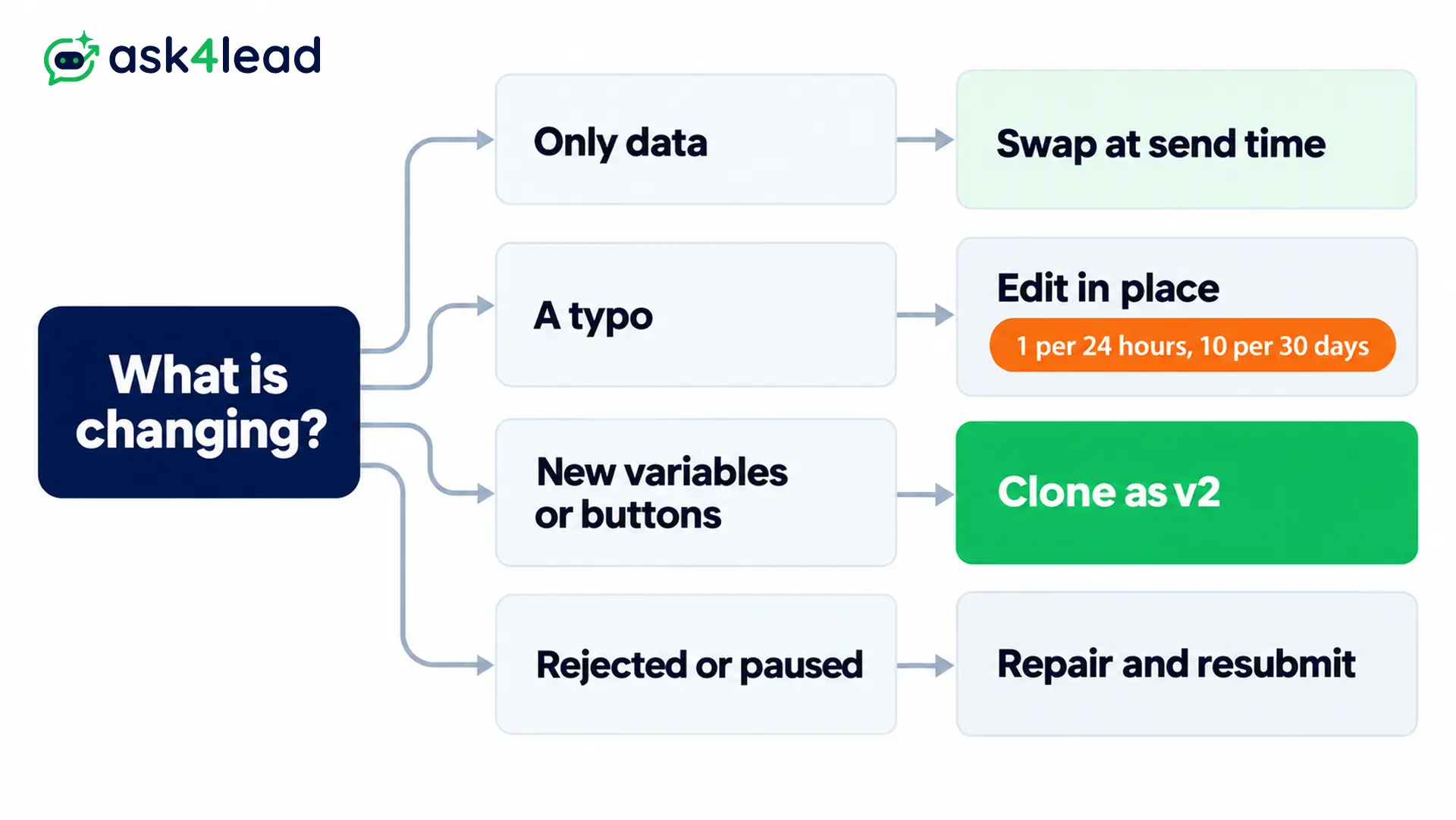
Lane 1: swap data at send time instead of editing
Before you edit WhatsApp template text, check whether the change is really data. Send the new value or file with the message, and keep the media type the same.
- Variable text such as
{{1}}for a name or order ID. - A new PDF brochure in the same document header, if your tool sends the file per message.
In Ask4Lead, variables fill from CRM fields through lead management. A new price or owner name then changes in the lead record, so there is no review wait.
Lane 2: update WhatsApp message template wording in place for small fixes
To edit WhatsApp template text directly, all 4 checks must pass:
- The template has few live sends, or can pause for a day.
- The variable count stays the same.
- The wording stays inside the template’s category.
- Edits remain in the 10-per-30-days budget.
Lane 3: clone to update WhatsApp message template content for bigger changes
Clone WhatsApp template copies when you add variables or buttons, change the purpose, serve high volume, or send marketing. The original keeps its approval and keeps serving.
Meta rejects a template whose body or footer exactly matches another in your account, authentication aside, so change the text, not just the name.
Practitioners report that clones clear review faster than when you edit WhatsApp template copies in place, though Meta does not document it.
Lane 4: repair a rejected, paused or disabled template
- Rejected: edit WhatsApp template drafts freely, then resubmit. Our rejected template guide lists the usual causes.
- Paused: improve the copy, then edit. Pauses last 3 hours, then 6 hours, and the 3rd disables the template.
- Disabled: clone WhatsApp template content with new wording, and review your quality rating before sending again.
How to Clone WhatsApp Template Versions Without Downtime
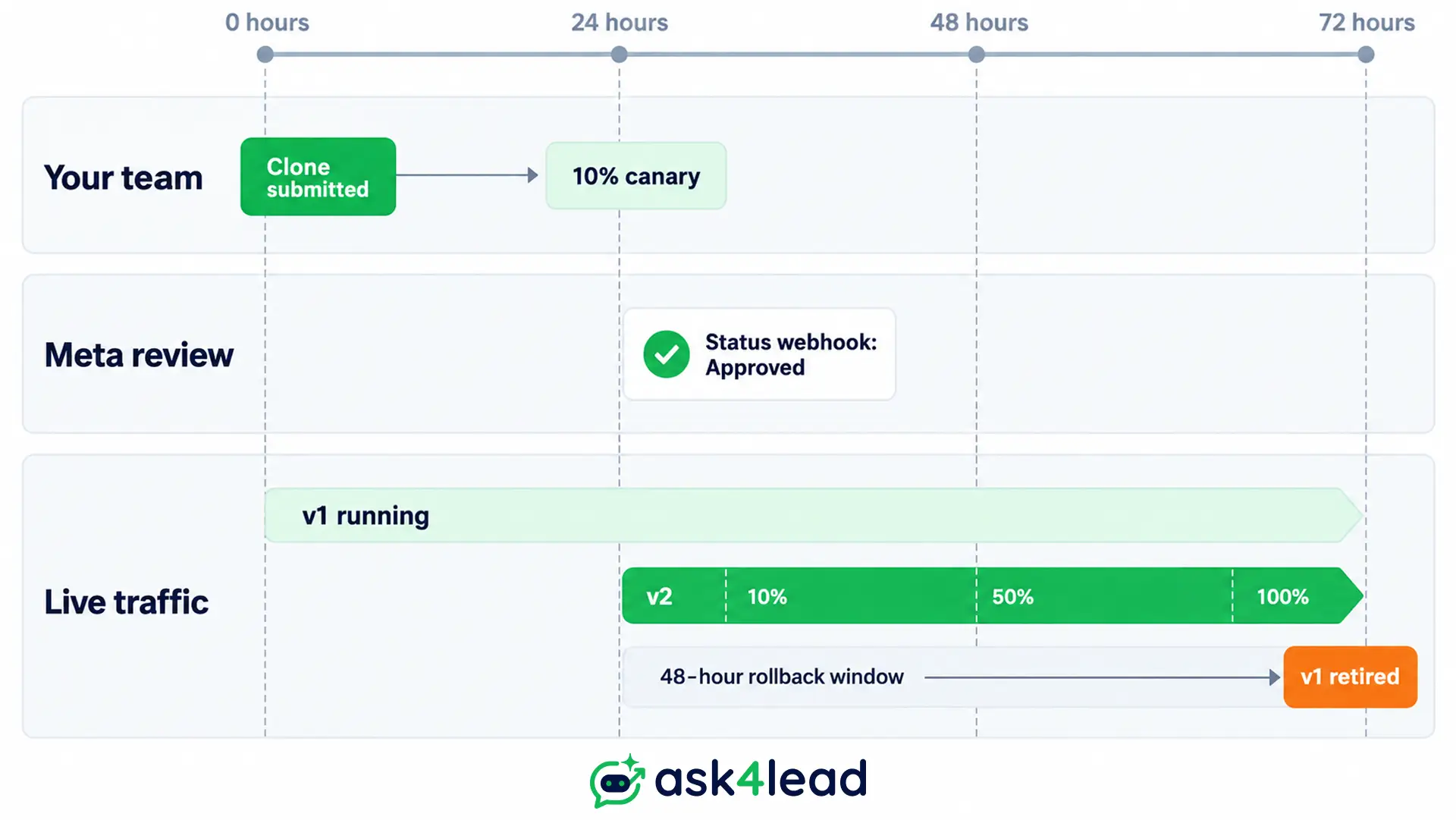
To update WhatsApp message template content by cloning, follow 5 steps: map, copy, approve, switch and retire.
The map comes first, because most breakage comes from places nobody remembered the template was used. Allow 2 to 3 days end to end.
1. Map every place before you update WhatsApp message template content
Search your CRM, no-code tools and code for the exact template name:
- Campaigns, drip sequences and scheduled sends that hold a template reference days ahead.
- API payloads, which carry the name, language code and variable count.
- Files stored inside the template, which some tools bind to it.
- Click-to-WhatsApp ad greeting templates, which are separate from API templates. If you copy an ad to another channel, it can silently fall back to a default greeting.
Then keep a register:
| Template | Version | Category | Language | Used in | Edits this month |
| order_update | v1 | Utility | en | Shop automation | 2 |
2. Clone WhatsApp template content with a new name and changed text
Names take lowercase letters, numbers and underscores, so count upward: order_update_v1, order_update_v2.
Change the body or footer, or Meta auto-rejects the clone as a duplicate.
Keep variables numbered in sequence, never at the very start or end of the body. Recreate each language version too, because every language is reviewed on its own.
3. Wait for Approved, then run a test send
When you update WhatsApp message template campaigns, never repoint anything while the clone shows Pending. Meta fires a message_template_status_update webhook with APPROVED or REJECTED, so your system reacts automatically.
Then send the clone to 2 or 3 internal numbers and check variables, buttons and media.
Ask4Lead’s WhatsApp campaigns list only approved templates, so a Pending clone cannot be scheduled by mistake.
4. Switch in stages, then retire the old version
- Move 1 campaign, or 10% of a segment, to the clone.
- Watch delivery and quality for 24 hours.
- Move the rest, and update the API variable count in the same release.
- Keep the old version approved for 48 hours as a rollback.
- Delete or pause it, and never reuse its name.
During step 2, Ask4Lead’s Account Health dashboard shows your Green, Yellow or Red quality rating and warns you when it slips.
Update WhatsApp Message Template Wording Without Changing Category
Each time you edit WhatsApp template wording, Meta re-checks the category.
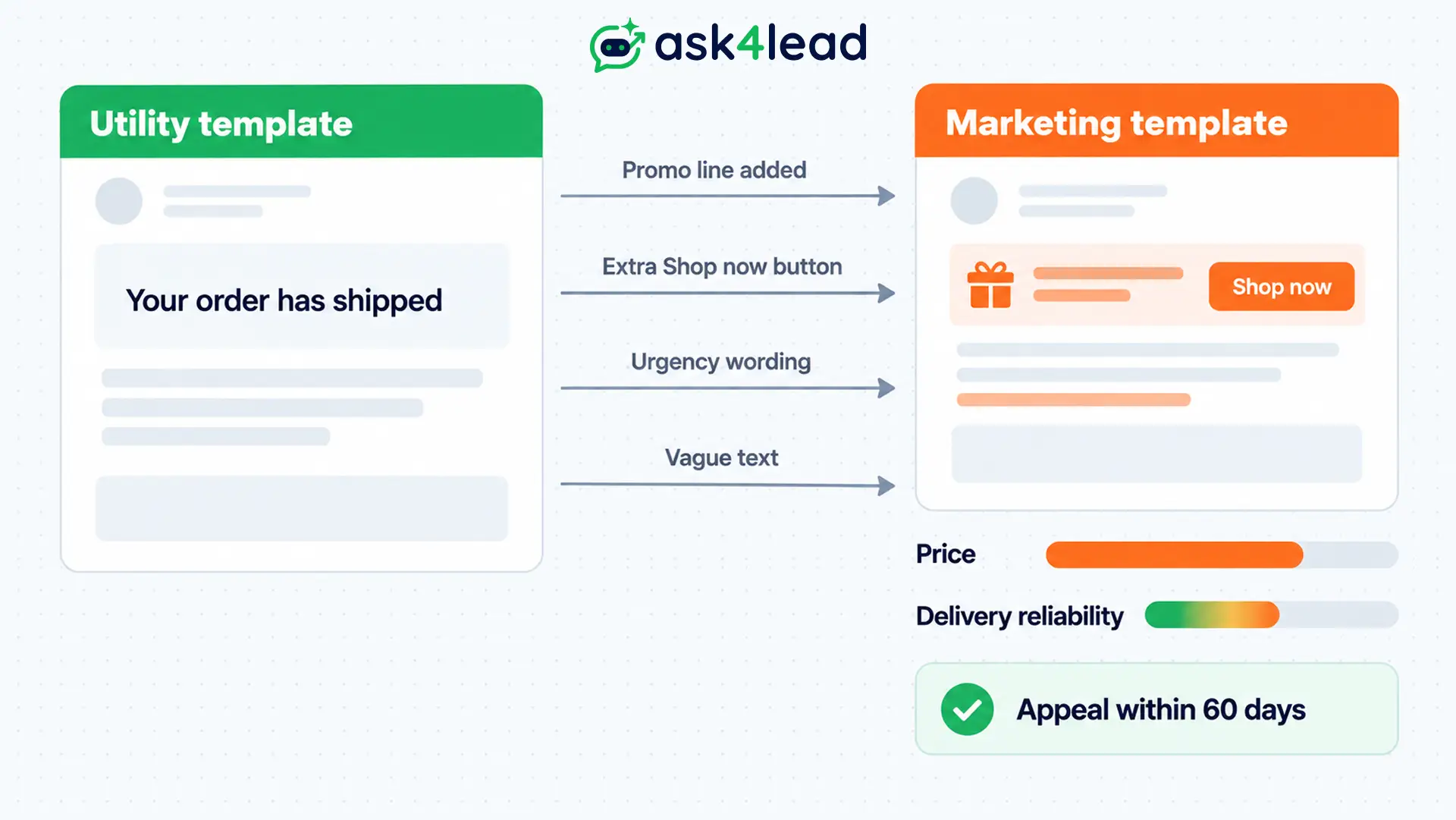
Promotional lines can reclassify a utility template as marketing, which costs more, faces per-user limits and is not guaranteed to deliver, so clone WhatsApp template drafts and review the copy first.
1. Edits that quietly flip utility to marketing
Promotional and transactional content in 1 template is always treated as marketing. Watch for these when you edit:
- A discount, promo code or “you may also like” line added to an order update.
- A “Shop now” button added beside a transactional message.
- Urgency phrases such as “limited time”.
- Vague, generic text that gives no clear trigger.
One business reported that removing a single button from a library template triggered reclassification, so the checker reads structure as well as words. Compare the gap in WhatsApp API pricing before you risk it.
2. Why category decides delivery, not only cost
Marketing messages face per-user limits, so some are never delivered. One CRM team saw about 40% of automated lead messages bounce while sending marketing templates.
The usual fix is moving transactional messages into utility. A lead who replies opens a free-form window, and Ask4Lead’s shared team inbox keeps every rep answering from 1 place.
3. How to appeal a category change
Provider documentation says you can request a category review within 60 days of creation or of the change. Manual review often clears false positives, and Meta explains its rules in the template categorization guide.
If the appeal fails, clone WhatsApp template copy with new wording instead. Do not edit WhatsApp template wording on the original again, because each edit burns your limit.
Plan Review Times Before You Update WhatsApp Message Template Content
Budget 1 to 3 days before a launch. Verified accounts with plain utility copy often clear in minutes, but marketing or edited wording can take 24 to 48 hours, and a rejection restarts the clock. Plan the update well before the campaign date.
Review times by template type
| Template type | Typical wait | Plan for |
| Plain utility (order update) | Minutes to a few hours | 1 business day |
| Marketing | Hours to 24 hours | 2 days |
| Edited or borderline wording | Up to 48 hours | 3 days, with 1 resubmission |
Buffers are planning figures, not Meta promises. Agencies get “any update?” messages because dashboards hide status, so share webhook-driven status instead of refreshing.
How to keep leads moving while a template is in review
A template matters only after the 24-hour window closes. Inside it, the AI Sales Assistant keeps answering leads in plain English while your update waits.
For leads outside the window, the Work Queue puts each Next Step reminder at the top of the rep’s day.
Template pacing and quality pauses after launch
- Template pacing: Meta may send a new or reactivated marketing template to a small share first, then release the rest.
- Pausing: low quality pauses a template, and you can then edit WhatsApp template wording with no cap.
- Your move: after you update WhatsApp message template content, send it to your most engaged segment first, using our bulk sending guide.
Fixing Failures After You Update WhatsApp Message Template Content
When sends fail after an update, the error code usually names the cause. Match it before you edit WhatsApp template text again, because every extra edit spends your limit, and a wrong guess can pause the template. Start with the code, not the template.
Error codes that follow a template change
Meta’s error code reference lists them all. An update tends to cause these:
| Code | Meaning | Likely update cause | Fix |
| 132001 | Template unavailable | Payload calls the clone before approval, or language code differs | Check status, match name and language |
| 132000 | Variable count mismatch | Clone added a variable, payload did not | Update the payload |
| 132015 | Paused for low quality | Recipients blocked or reported it | Improve copy, edit, resubmit |
| 132016 | Permanently disabled | Paused 3 times | Clone WhatsApp template with new wording |
Errors that are not about the template
- 131049: Meta held a marketing message to protect the user. Wait 24 hours, then retry.
- Rate-limit errors: pause the campaign midway, then resend the pending messages later.
Our guide to WhatsApp messages not delivered covers the rest.
Direct Send and How You Update WhatsApp Message Template Content
Direct Send lets a business send Utility messages without submitting a template first, and Meta builds the template in the background.
Reports from August 2026 call it an allowlist-only beta, so for now you still update WhatsApp message template content the usual way.
How Direct Send handles templates
- Meta matches the message to an existing template, or generates one from it.
- Generated templates appear in WhatsApp Manager and the templates API.
- You cannot edit WhatsApp template copies that Meta generates, and a Meta tech provider says the normal send call cannot use them.
The suspension ladder and what to do now
Meta enforces Direct Send after the fact, at account level:
- Warning at WABA level (the WhatsApp Business Account), with the right to appeal.
- 7-day suspension.
- 30-day suspension.
- Ban from Direct Send.
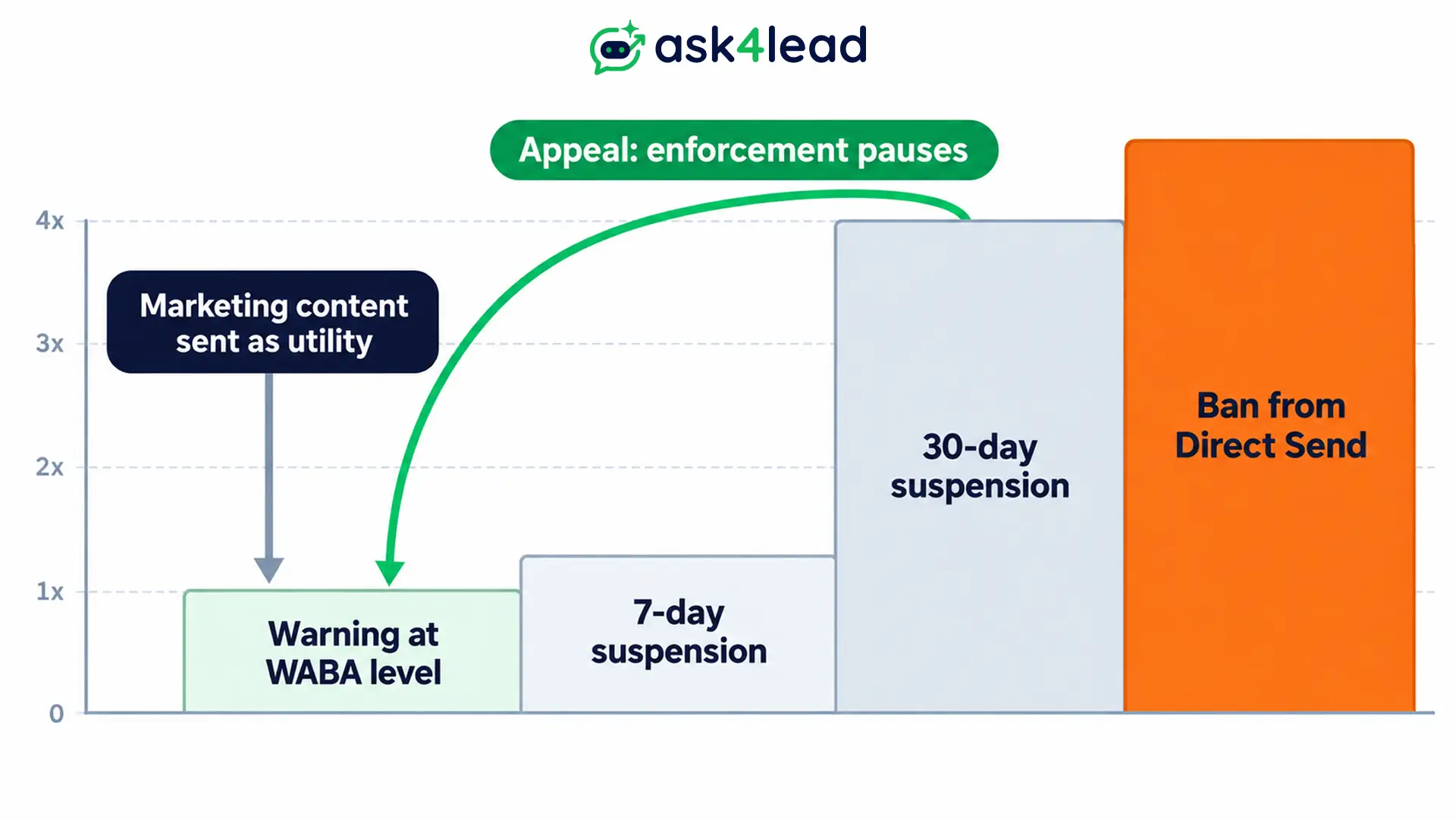
Notices come by email and webhook, and Meta enforces nothing during an appeal. Keep promotions out of utility messages, as our policy violation guide explains.
FAQs
1. Can I update WhatsApp message template content after approval?
Yes, you can update WhatsApp message template content after approval, except the name and language. Each edit returns it to review.
2. Will my campaign stop if I update WhatsApp message template content?
It depends on the platform. Some stop it, but others keep sending the old text. You can clone WhatsApp template copies to avoid the question.
3. Why was my clone rejected as a duplicate?
Its body or footer matched another template in your account. Change the wording, not only the name.
4. Can I reuse the name of a deleted template?
No. Meta blocks reuse for 30 days, so version your names whenever you clone WhatsApp template content.
5. Does fixing a typo use up an edit?
Yes. Every time you edit WhatsApp template wording, it counts toward the 10-per-30-days limit.
Conclusion
Every time you update WhatsApp message template content, treat it as a small release: a map, a clone, a test and a staged switch.
Run this check before your next update:
- Pick the lane: data swap, in-place edit, clone or repair.
- Clone WhatsApp template copies with changed body text, so Meta cannot flag a duplicate.
- Keep the old version live until the new one shows Approved and passes a test send.
- Move traffic in stages, then watch quality for 24 hours.
The habit matters more as Direct Send spreads, because generated templates cannot be edited at all.
Update WhatsApp message template content without losing a lead
Every template update opens a window where leads can go cold.
Ask4Lead keeps that window shut:
- Track each template from Pending to Approved in 1 dashboard.
- Schedule campaigns that can only pick approved templates.
- Watch your quality rating before a bad update costs you reach.
- Let the AI agent answer every lead inside the 24-hour window while templates wait for review.
