
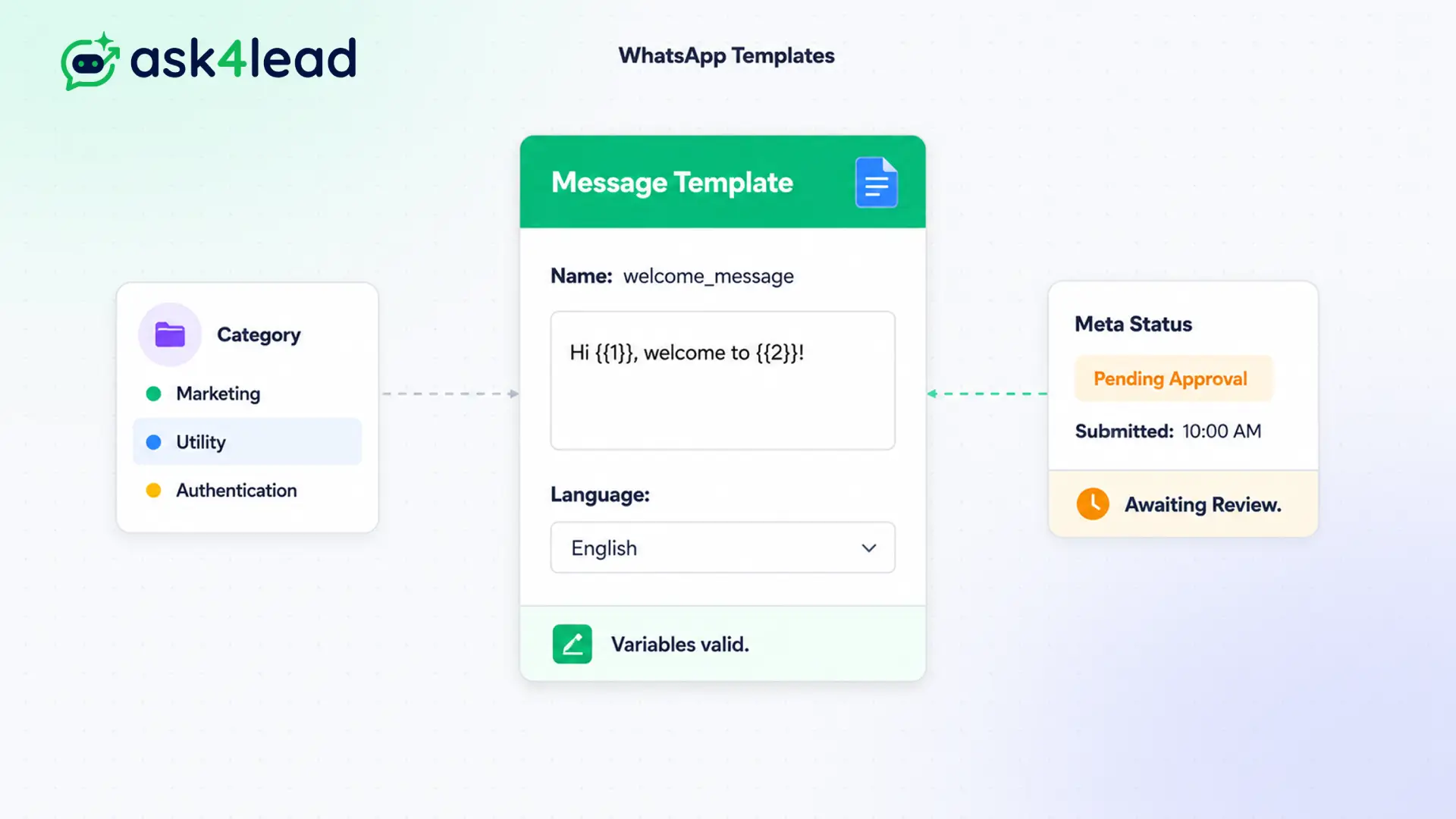
Creating templates directly in the native Meta Business Suite is confusing and disconnected from your CRM.
Formatting errors cause frustrating rejections, ruining your marketing schedule.
With Ask4Lead, you can build rich WhatsApp message templates with dynamic variables mapped to CRM data, upload images, and add interactive buttons. Submit them to Meta directly from our dashboard and get approved in minutes.
Stay compliant. Launch interactive campaigns faster.
Why You Need WhatsApp Message Templates
Meta enforces strict rules to protect its users from spam and unsolicited messaging.
If a customer has not messaged you in the last 24 hours (known as the 24-hour service window), you cannot send them a free-form text. You must use pre-approved WhatsApp message templates to reopen the conversation.
Our intuitive template manager simplifies the creation and submission process, ensuring your messages always meet Meta’s strict commerce policies so your business stays compliant.
Stop Getting Your Campaigns Rejected by Meta
Creating WhatsApp message templates directly in the native Meta Business Suite is clunky. Formatting errors lead to frustrating delays that hold up your marketing efforts.
Furthermore, businesses often forget to include interactive elements, leading to terrible campaign engagement rates and low ROI.
Key Insight: The Ask4Lead builder visually guides you through the process. It maps your CRM fields perfectly and warns you about common compliance errors before you submit, ensuring a near 100% approval rate.
How to Build and Submit WhatsApp Message Templates
Drafting and launching new WhatsApp message templates takes just a few clicks:
- Choose a category: Select Marketing, Utility, or Authentication based on your goal to ensure correct pricing by Meta.
- Add rich media: Upload an eye-catching header image, promotional video, or PDF document.
- Write the body: Draft your message. Insert variables like {{1}} which Ask4Lead will auto-fill with CRM data.
- Add interactive buttons: Create quick reply buttons or Call-To-Action (CTA) links to your website.
- Submit to Meta: Click submit. Meta usually approves compliant templates within 5 minutes directly in the Ask4Lead dashboard.
Core Capabilities of the Template Builder
Our manager unlocks the full power of the WhatsApp API for your WhatsApp message templates:
- Support for interactive Quick Reply buttons that drastically increase customer response rates.
- Add Call-to-Action (CTA) buttons that link directly to your website or trigger a direct phone call.
- Track the real-time approval status (Pending, Approved, Rejected) directly within the Ask4Lead dashboard.
- Easily manage multiple languages for the same template to support localized global campaigns.
- Preview exactly how the message will look on an iPhone or Android device before submitting.
- Organize your templates by category so human agents can find them quickly during live chats.
Meta Business Suite vs. Ask4Lead Template Builder
| Native Meta Business Suite | Ask4Lead Template Builder |
| Confusing, developer-focused interface | Simple, visual drag-and-drop builder |
| Hard to manage dynamic variables | Variables map perfectly to your CRM data fields |
| Disconnected from your marketing tools | Built directly into your automated campaign workflow |
| Difficult to test interactive buttons | Live device previews for all buttons and media |
How Templates Connect to Your CRM
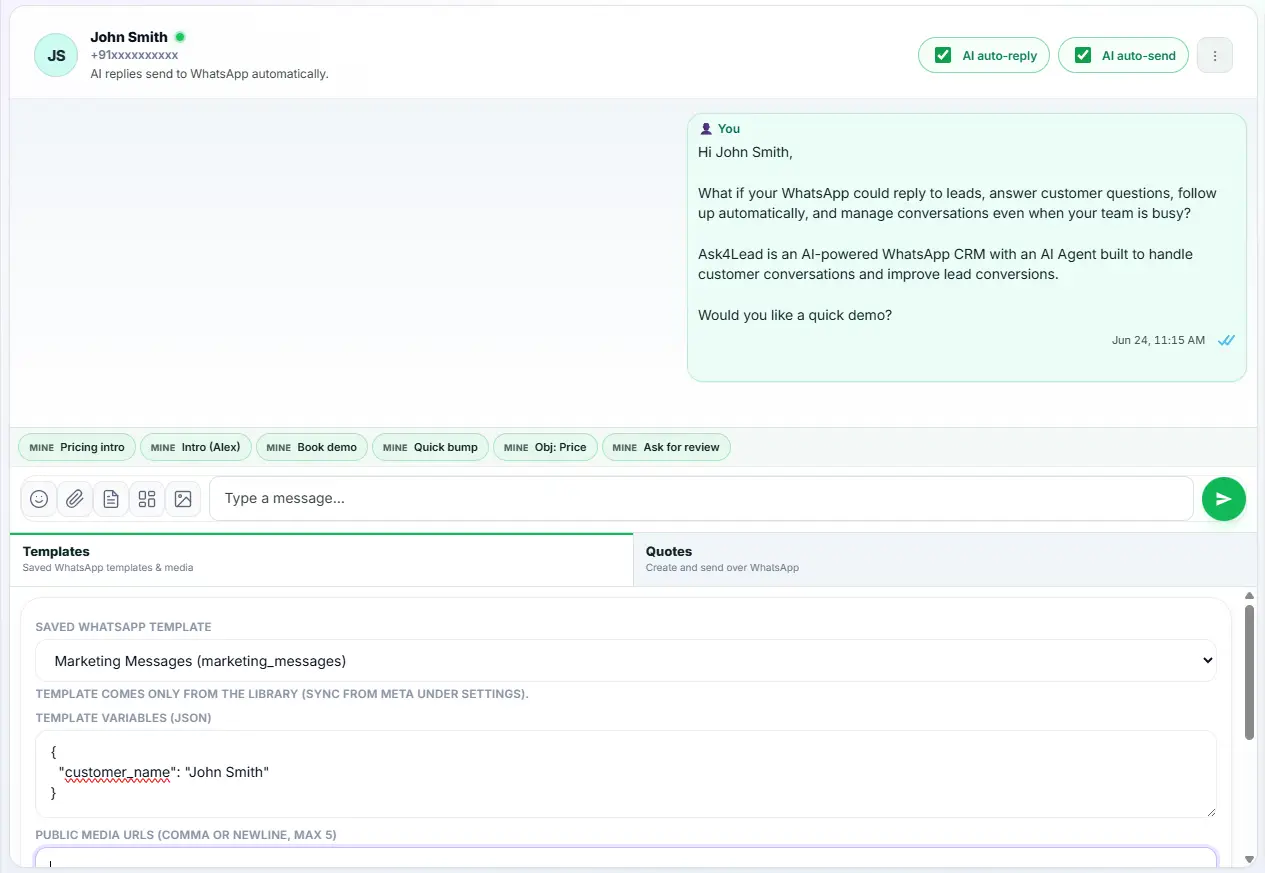
WhatsApp message templates are the foundation for proactive outreach in Ask4Lead. Your human agents can trigger them from the Shared Team Inbox to reactivate Snoozed Conversations.
- WhatsApp Campaigns: You select an approved template to broadcast securely to thousands of people.
- Shared Team Inbox: Agents use templates to message leads who have been inactive for over 24 hours.
- Snooze Conversations: When a snoozed chat wakes up after a week, you must use a template to reply.
Industries That Maximize Custom Templates
- E-commerce Stores use utility WhatsApp message templates to send automated shipping updates and delivery tracking links.
- Financial Services use authentication templates to securely send One-Time Passwords (OTPs) via WhatsApp.
- Airlines & Travel use media templates to send boarding passes directly to the customer’s phone.
- SaaS Companies use marketing templates to invite inactive users to an upcoming product webinar.
FAQs
Why do I need Meta’s approval to send a message?
To prevent spam, Meta requires businesses to use pre-approved WhatsApp message templates when initiating a new conversation or replying to a customer after 24 hours of inactivity.
How long does the approval process take?
Thanks to Ask4Lead’s compliance checks and Meta’s automated systems, most well-crafted WhatsApp message templates are approved or rejected within 2 to 5 minutes.
Can I edit a template after it is approved?
Yes. However, if you make significant changes to the text or structure, Meta requires you to resubmit it for approval before you can use it again.
Do WhatsApp message templates cost money to send?
Yes. Meta charges a small per-conversation fee when you deliver a template. The price varies depending on the category (Marketing, Utility, Authentication) and the user’s country.
Can I put my customer’s name in the message?
Absolutely. You use variables (like {{1}}) in your WhatsApp message templates. When you send the message, Ask4Lead automatically replaces {{1}} with the customer’s real name from the CRM.
Why was my template rejected?
WhatsApp message templates are usually rejected for formatting errors, grammatical mistakes, or violating Meta’s strict commerce policies. Our builder warns you of common errors beforehand.
Related Features

WhatsApp Campaigns
Email marketing is dying. Our WhatsApp marketing software lets you broadcast messages directly to your customers' phones with a 98% open rate.

Launch AI Email Campaign in WhatsApp
Run personalized email campaigns where AI writes a unique subject and body for each recipient, sent across multiple mailboxes for better deliverability.

Reports and Analytics
Stop managing your sales team blindly. Our visual WhatsApp analytics dashboard gives you total visibility into every metric that matters.