
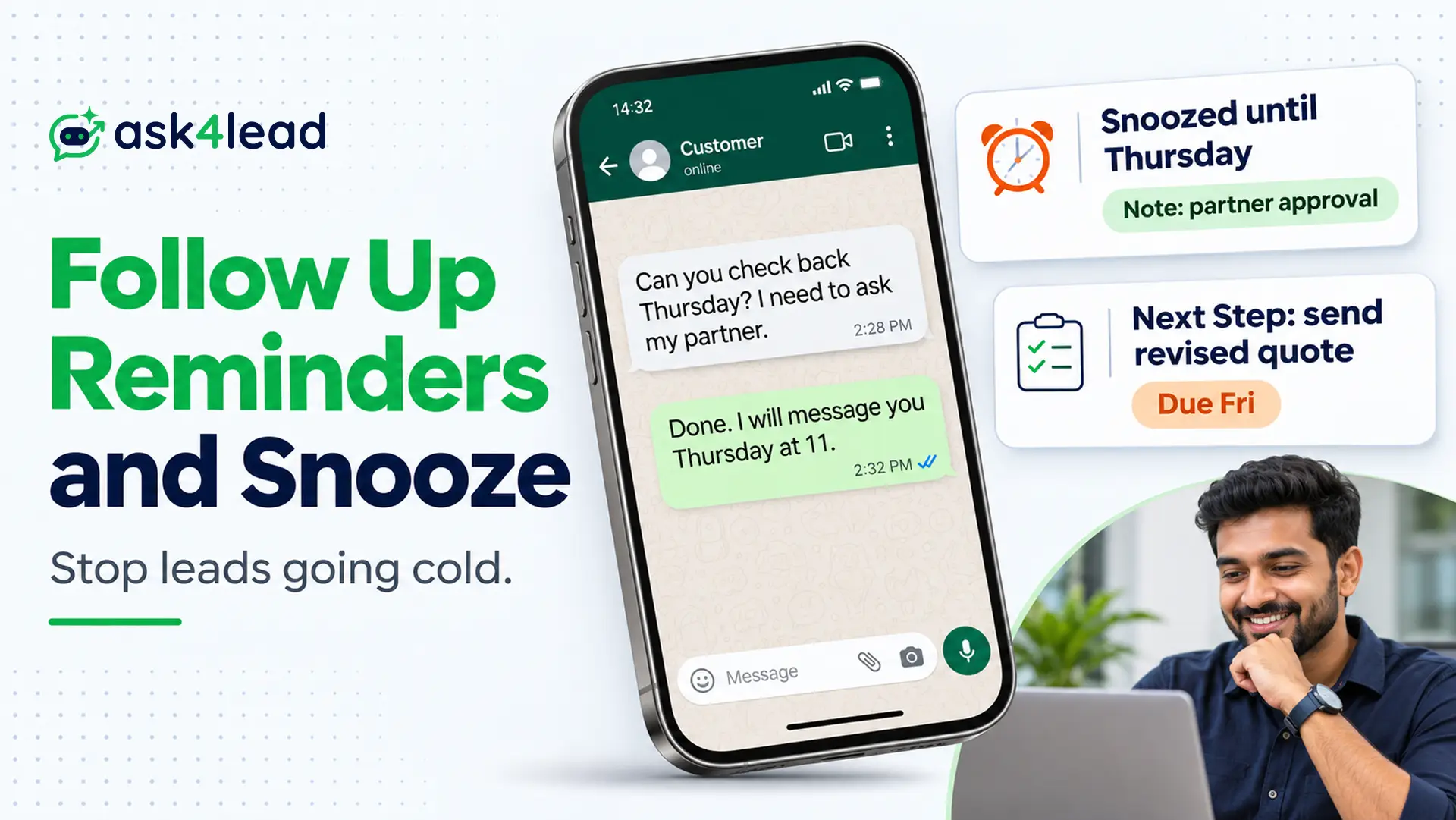
How do you stop leads going cold after a good first call? Follow up reminders tell you when to contact a lead again, and snooze hides the chat until that day. Together they work, because every lead then holds a date and a reason instead of silence.
You will learn how to set them with the Next Step tool, when to snooze, and when to stop.
Use these follow up reminders if you sell over WhatsApp and lose leads after a good first conversation.
What Are Follow Up Reminders, and How Is Snooze Different?
Follow up reminders are prompts with a date that bring a lead back to your attention. Snooze hides a chat until a chosen day. A reminder says “do this by Thursday”. Snooze says “I am waiting on them until Thursday”. Most teams mix the two up, and leads then slip.
Email tools use the same idea. Gmail’s snooze removes a message from your inbox and returns it to the top at the time you choose. However, a sales chat needs one more thing, which is a recorded reason.
1. Use one rule to tell a snooze from a reminder
This rule is our suggestion, not an industry standard:
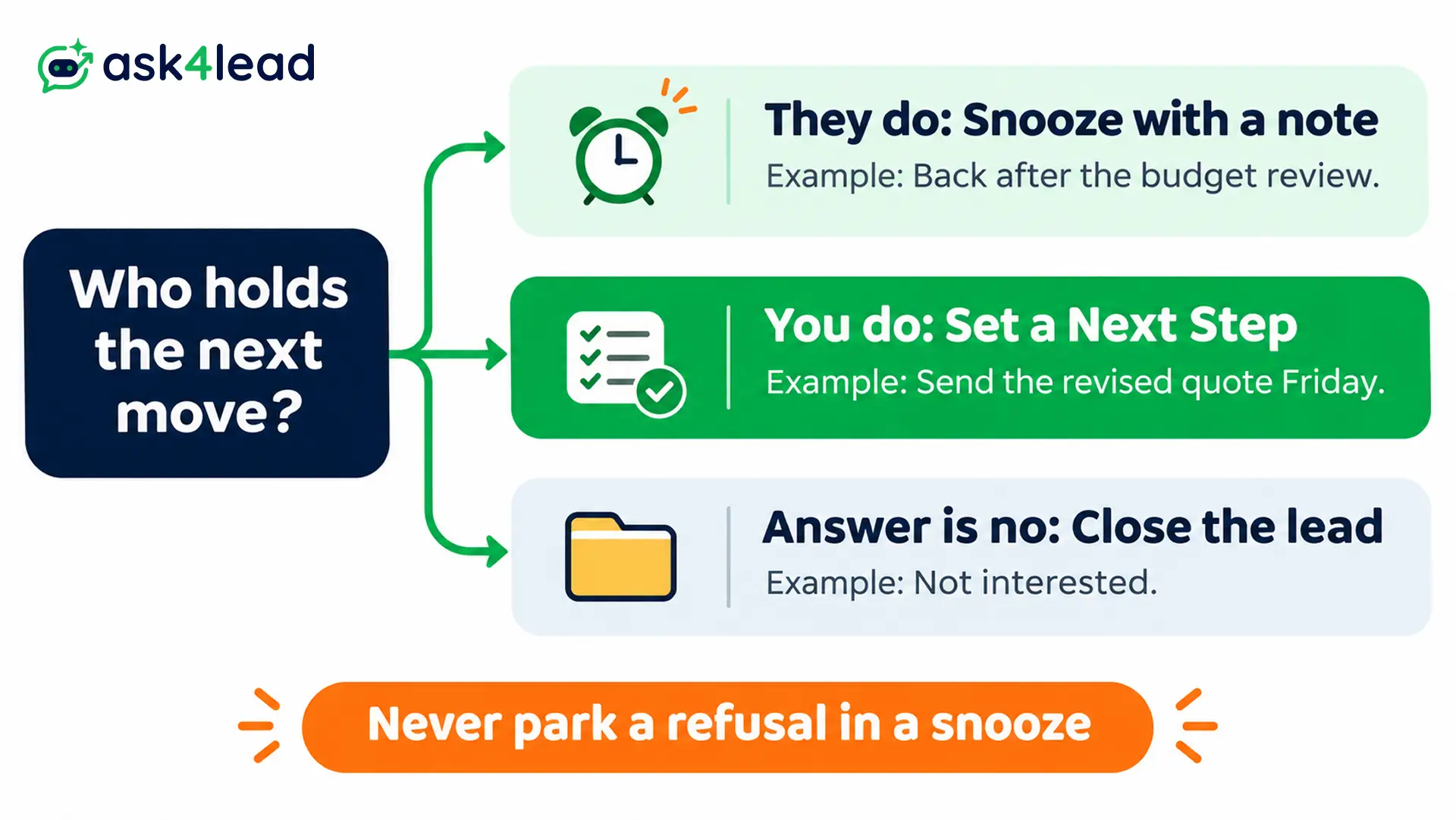
- Snooze when you wait on them: the customer asked you to come back after a budget review or a trip.
- Set a Next Step when you owe something: you promised a revised quote or a call.
- Close the lead when the answer is no: a refusal does not belong in a snooze.
So pick the tool that matches who holds the next move. That one choice keeps your follow up reminders honest.
2. See why leads go cold without follow up reminders
Leads rarely say no out loud. Instead, the call ends with “I will decide soon”, and nobody names a day. Then newer chats bury the thread, and the only reminder lives in someone’s memory.
Calendar alerts help, but busy people swipe them away. Follow up reminders tied to the chat itself are harder to ignore.
How to Set Follow Up Reminders Before the Chat Ends
Set the date while the customer is still talking to you. Ask what they need to see before they decide, then propose a day. When they agree, your follow up stops feeling pushy, because they asked for it. Follow up reminders you add later depend on memory.
1. Ask for the date out loud
Replace “let me know” with a question that names a day. For example:
- “What do you need to see before you decide?”
- “Is it OK if I check in on Thursday?”
Most people say yes. In addition, the first answer shows what holds them back, such as price, timing or a second decision maker.
2. Record whether the date is theirs or yours
A date the customer chose is a promise. Your own guess is only a plan. Start every note with “agreed” or “my guess”.
Then you can move your own guess freely. However, you should not move the customer’s date without telling them.
3. Write a note that names the person and the ask
A note that says “call Maria” fails the day you have two Marias. Instead, write the full name, the business, what they asked and what you promised.
For example, write “Maria Fernandes, bakery, 3-tier quote, I send Friday.” The note shows on the task. So you know the context before you type.
4. Send a same-day recap that ends in a yes or no question
Send a short recap on WhatsApp within hours. List the problem, the outcome they want and the agreed day. Then end with one yes or no question, such as “Shall I send the quote by Friday?”
People who go quiet often skip long replies. As a result, a one-word answer is easy to give.
5. Pick the day for your follow up reminders
Match the follow up day to the reason for the pause, not to your mood. A short pause needs a short gap, and a budget cycle needs a long one. Use the bands below as a starting point, then adjust them to your sales cycle.
- Quote sent, one open question: 2 to 3 days.
- Customer needs a partner or team to agree: about 1 week.
- Named trigger such as a budget, contract end or launch: about a month before that date.
- “Not now” with no reason: ask once for a reason, then wait 2 to 3 months.
These bands are our rule of thumb, so test them against your own cycle. Also, a trigger beats a number. A cleaning firm that learns a contract ends in June should remind itself in May.
Finally, avoid setting all your follow up reminders for tomorrow. Tomorrow then gets crowded, and the reminders lose their meaning.
6. Add the Next Step in Ask4Lead
A Next Step is how Ask4Lead sets follow up reminders, saved as a task tied to the chat. To add one, follow these steps:
- Open the lead’s profile in the lead management view.
- Click Add Next Step in the sidebar.
- Type the note, such as “Send revised pricing”.
- Pick the day and time for the reminder.
- Wait for the task to appear in your Work Queue when it is due.
One click on the task opens the exact chat. Note that each lead holds one Next Step at a time, so write the most important action.
How to Snooze Leads and Keep Follow Up Reminders Clean
Snooze a lead when you wait on them. In Ask4Lead, snooze conversations lets you press an alarm clock icon and pick a day. The chat leaves your inbox, then returns to the top of your Work Queue on that day.
1. Snooze a chat in 4 steps
- Press the alarm clock icon at the top of the chat.
- Pick a preset such as Later Today, Tomorrow or Next Week, or choose a date on the calendar.
- Add a quick note about why you paused it.
- Let the chat leave your inbox until the day arrives.
Snoozed chats raise no overdue alert until their timer ends. Therefore your overdue follow up reminders stay honest.
2. Let early replies wake the chat
If the customer writes before the date, the chat wakes at once and jumps to the top of your inbox. So a snooze never hides a hot message.
Also, the AI Sales Assistant keeps answering while a chat sleeps. The customer never waits for you to come back.
3. Keep every snoozed lead visible
A Snoozed folder in the sidebar lists each paused chat and its wake date. Open one and wake it by hand if you decide to follow up early.
Managers also see the same folders in their own view. As a result, nobody can park a live prospect and forget it.
4. Set the pipeline stage before you snooze
Before you snooze, move the deal to a stage such as Nurturing in the sales pipeline. Then your pipeline shows these leads as waiting, not lost.
How to Run Follow Up Reminders as a 3-Touch Sequence
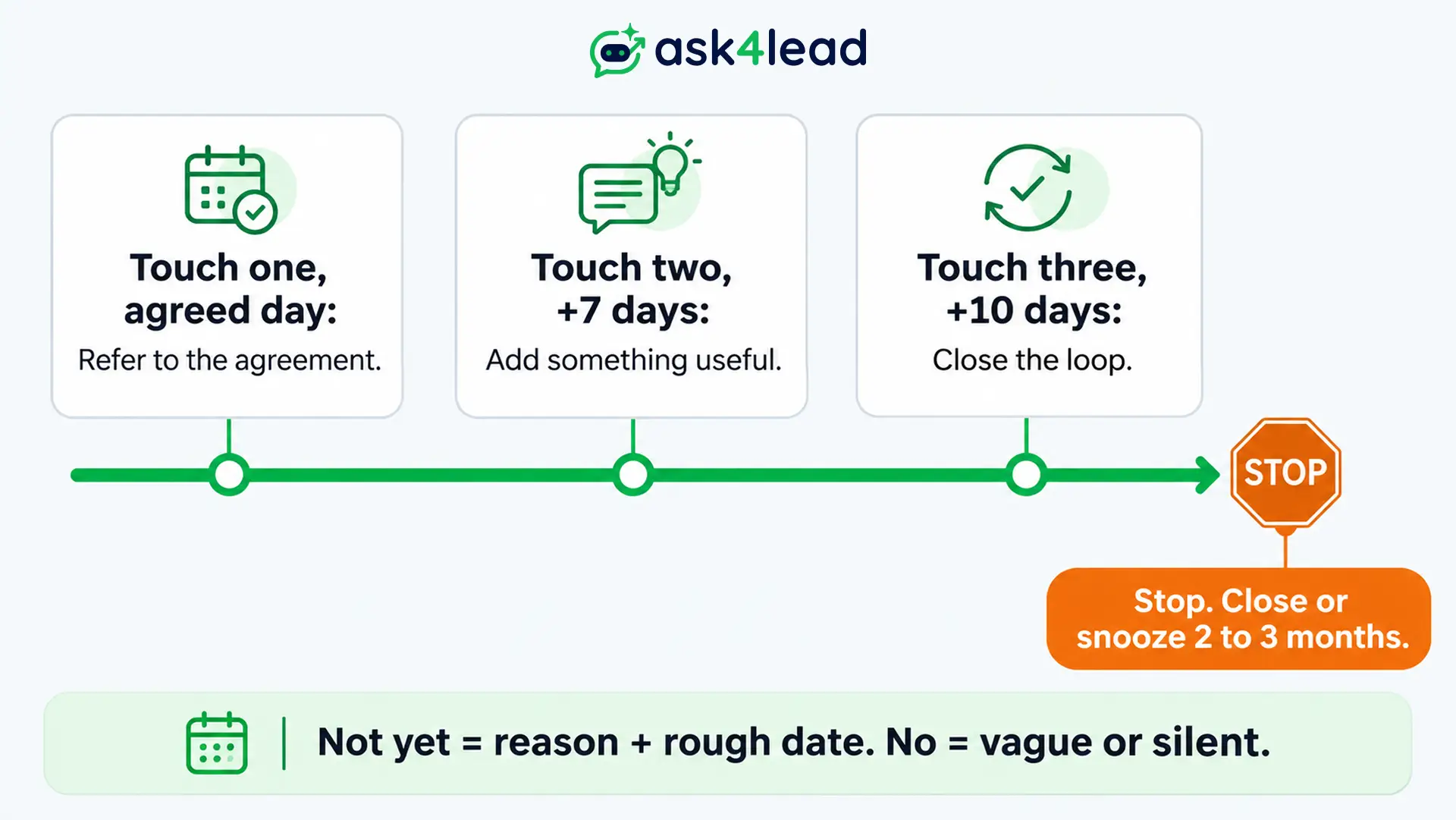
A fixed sequence beats deciding each time. Send touch one on the agreed day. Follow with touch two a week later, and make it useful. Finish with touch three as a polite close-out. Then stop. This sequence fits leads who went quiet after a real conversation.
For a brand-new enquiry, the 5-touch cadence in our WhatsApp lead follow-up guide fits better.
1. Open with the agreement on touch one
On the agreed day, remind them of what you both said. For example:
- “Hi Maria, you asked me to check in today about the 3-tier quote. Did you get a chance to review it?”
Because they agreed to this message, it reads as service and not pressure.
2. Add something useful on touch two
A week later, send help instead of “just checking in”. Answer the concern they raised, or share a short example that fits their case. For example:
- “Hi Maria, you mentioned delivery timing. Here is how we handle weekend orders. Does that answer your delivery question?”
If every message only benefits you, it feels annoying. So give them something each time.
3. Close the loop on touch three
Send a short close-out that makes saying no easy. For example:
- “Hi Maria, I will assume the timing is not right and close this for now. Please reply any time if that changes.”
This message often brings a real no or a quick “still interested”. Either way, you get an answer.
Then stop. Send no fourth message unless something new appears, such as a reply or a trigger date.
4. Tell “not yet” from “no”
A real “not yet” gives a reason and a rough date when you ask. For example, “after our budget review in March”. A no tends to stay vague.
After touch three, treat silence as no for now. Then close the lead, or snooze it for 2 to 3 months. Later, older leads who opted in can join WhatsApp win-back campaigns.
What the WhatsApp 24-Hour Window Means for Follow Up Reminders
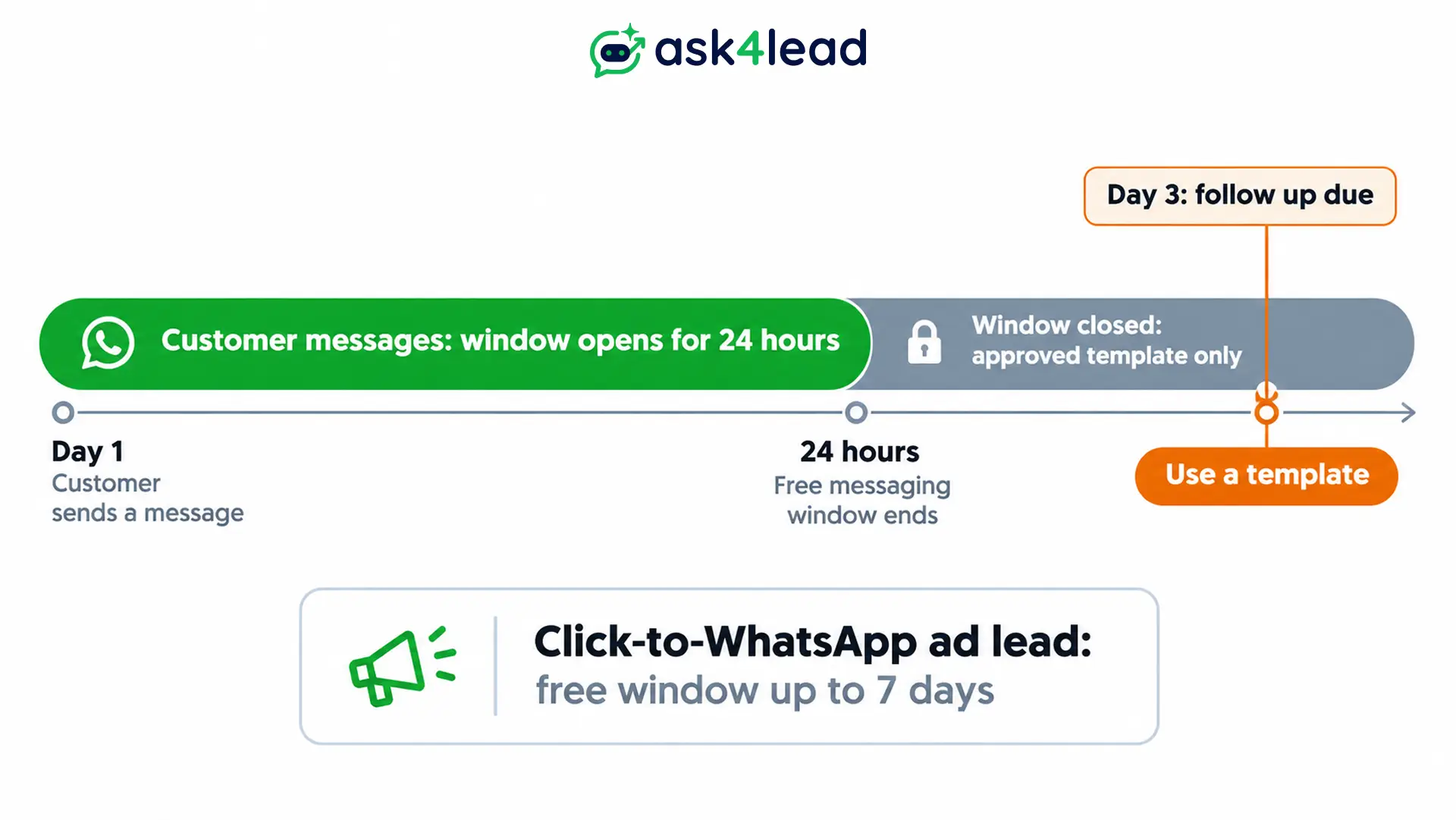
Follow up reminders for your own team cost nothing, but the message you send after one follows Meta’s rules. WhatsApp opens a 24-hour customer service window when a customer messages you. Outside that window, you can send only approved template messages.
1. Check the window when follow up reminders fire
Every new customer message resets the window to 24 hours. So a follow up due three days later almost always lands outside it. Plan to use an approved template, and read the WhatsApp 24-hour rule for the details.
Leads from click-to-WhatsApp ads are an exception. The free entry point window can stay open for up to 7 days once you reply to them.
2. Expect a charge per delivered template
Meta charges each delivered template message, whether it is marketing, utility or authentication. Each business number also gets 1,000 free service messages a month, which cover replies inside the window.
Check Meta’s pricing page for your country’s rates. For a fuller breakdown, see WhatsApp Business API pricing in 2026.
3. Keep consent on file
Template follow ups need the customer’s permission to receive business messages. Keep proof of opt-in consent in the lead record.
4. Remember a reminder does not message the customer
A Next Step is an internal task for your rep, who then sends the message. For sending without a person, use WhatsApp Campaigns, which send approved templates.
Reminders sent to customers, such as appointments or payments, are a different job. See our WhatsApp reminder message guide for those.
How to Review Follow Up Reminders Every Morning
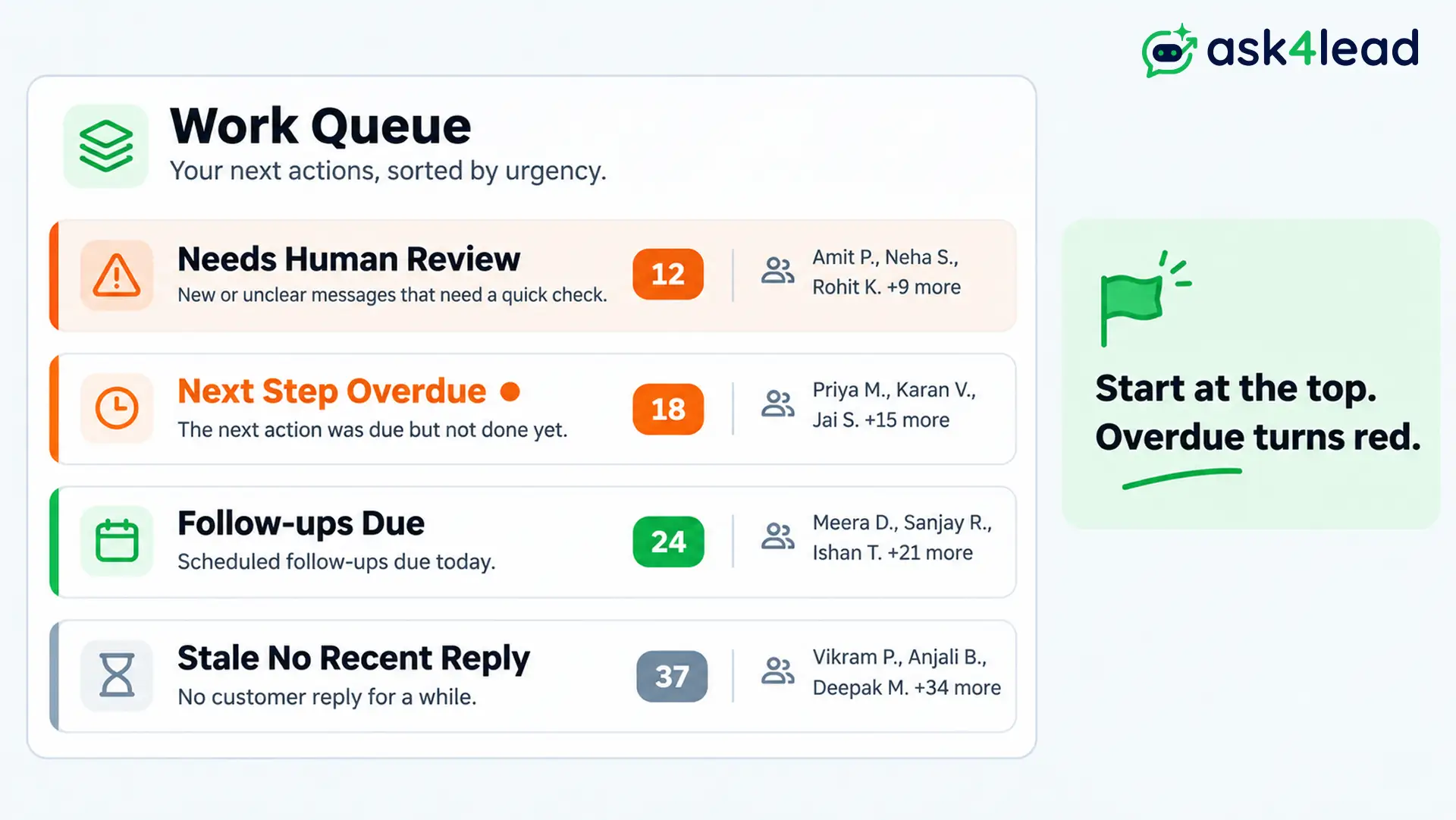
Open your Work Queue before your inbox each morning. It gathers due follow up reminders, overdue next steps and stale chats into one ranked list. Work it from the top, and you will know exactly who to contact next and why.
1. Read the four buckets
The Work Queue groups items like this:
- Needs Human Review: chats where the AI drafted a reply for your approval.
- Next Step Overdue: leads with a Next Step date in the past.
- Follow-ups Due: leads whose scheduled follow up time has passed.
- Stale No Recent Reply: open deals where the customer has been silent for a while.
Threads sort by urgency, so the list tells you who comes first.
2. Clear overdue follow up reminders first
Overdue tasks turn red and stay until you complete or reschedule them. Finishing one moves you to the next chat in line. As a result, the list shrinks without extra clicks.
3. Reschedule follow up reminders with a new note
If you cannot act today, set a new date and update the note. Then the next person understands the history. For leads you wait on, snooze with a reason instead.
4. Review the team once a week
Managers can open each agent’s queue and see how many tasks are pending, completed or overdue. Spend 15 minutes a week on the overdue items.
Lead assignment rules decide who owns each lead. Meanwhile, the shared inbox for sales teams guide covers roles and access.
FAQs
1. How soon should I follow up after a lead goes quiet?
Follow up on the day you agreed. If you agreed no day, wait 2 to 3 days after a quote, then send one useful message. Waiting longer rarely helps, because the thread sinks.
2. How many follow up reminders should one lead get?
Give a lead three touches after a real conversation, then stop. Close the lead or snooze it for 2 to 3 months. Extra messages also raise the chance of a block.
3. What is the difference between a snooze and a follow up reminder?
Snooze hides a chat until a day you choose, because you wait on the customer. A follow up reminder is a task for you, because you owe an action. Ask4Lead offers both, and each returns the lead to your Work Queue.
4. Does snooze pause the AI Sales Assistant?
No. The AI keeps replying, and the chat wakes if the customer writes early.
5. Can follow up reminders send WhatsApp messages by themselves?
No. A Next Step reminds your rep to send the message. For automatic sending, use WhatsApp Campaigns with an approved template.
Conclusion
Follow up reminders work when every lead holds a date, a reason and an owner. Snooze the leads you wait on, set a Next Step for what you owe, and stop after three touches. Then review your Work Queue each morning.
Before you end the next call, check that you have:
- One date the customer agreed to, marked “agreed”.
- A note with the full name, the ask and your promise.
- Either a Next Step or a snooze, matched to who holds the next move.
- Your 3-touch plan, with a stop point.
- A template ready for when the 24-hour window closes.
Next, open your oldest quiet lead today and give it a date and a reason.
Stop trusting memory with your follow ups
If your follow up reminders still slip when the day gets busy, Ask4Lead puts the date inside the chat. A Next Step saves your note beside the conversation. Snooze removes the chat from your inbox until the day you picked.
Overdue tasks turn red in the Work Queue, so nobody can miss them. Meanwhile, the AI Sales Assistant keeps replying to anyone who writes early.
