
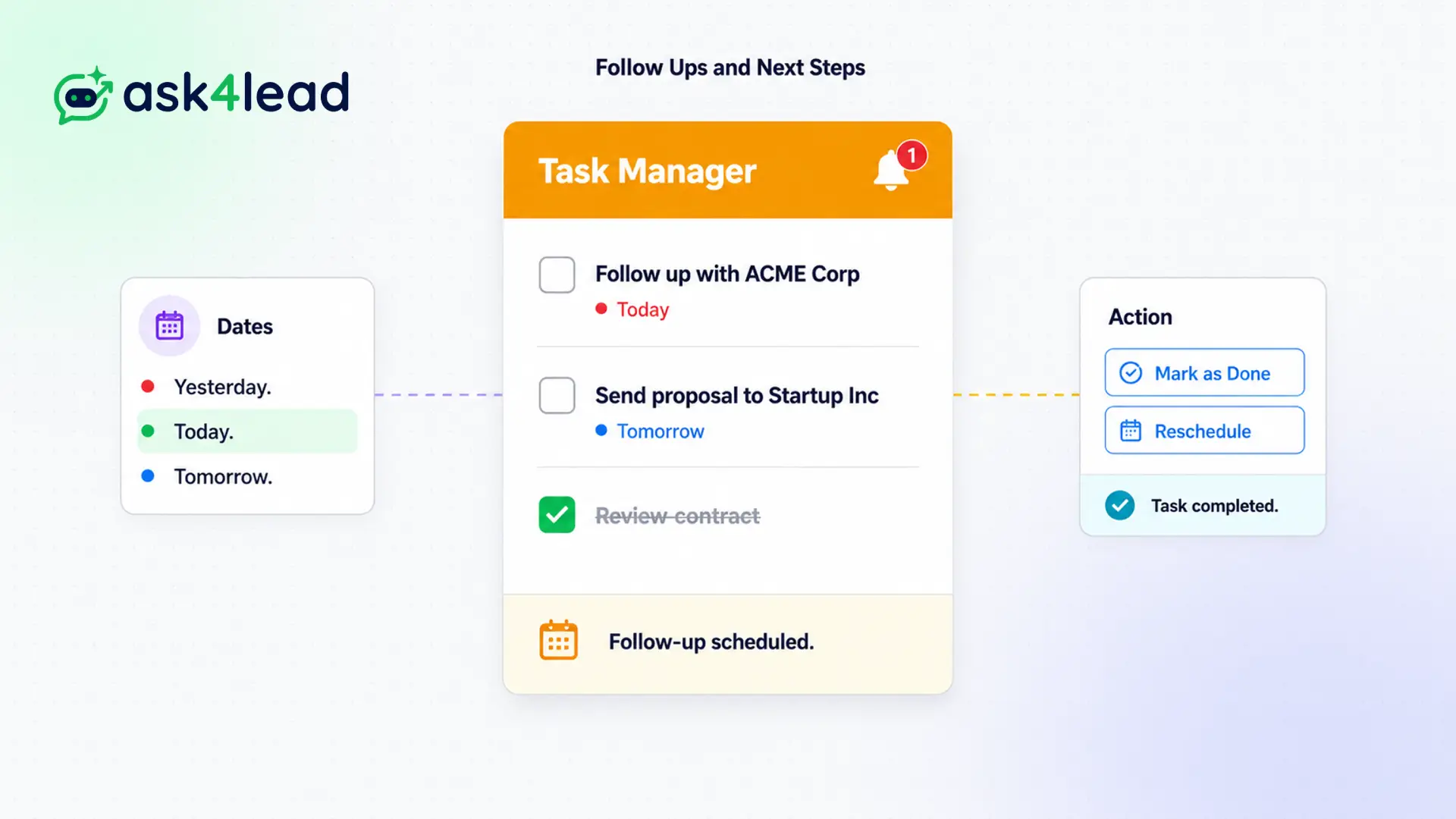
If you rely on your memory to manage a busy sales pipeline, you will lose money.
Our built-in task manager lets you attach reminders directly to specific conversations.
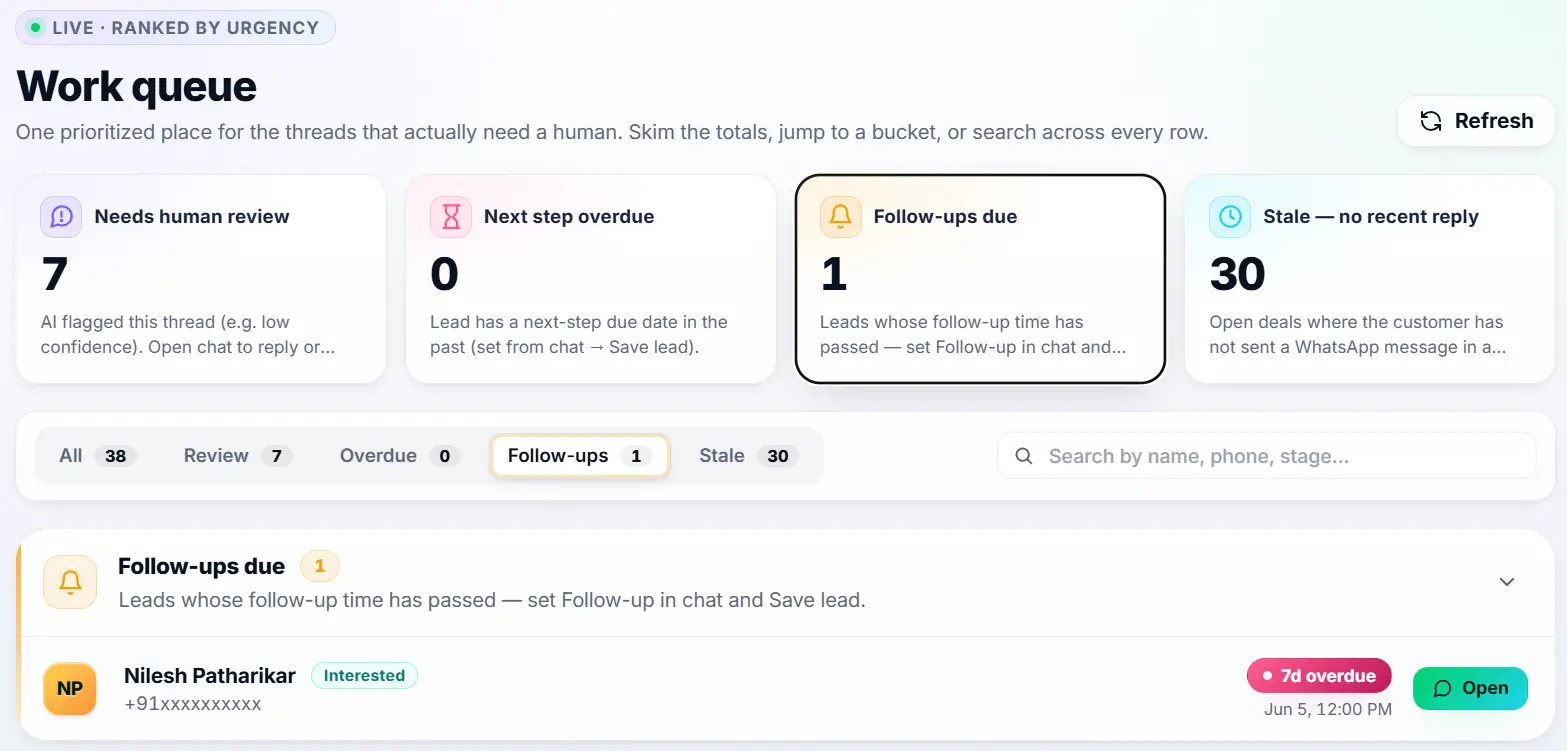
The system remembers for you. When the time arrives, it pushes a notification and places the task at the very top of your daily Work Queue.
Never forget a promise. Never miss a follow-up.
The Easiest Way to Handle WhatsApp Automated Lead Follow Up
Effective sales require timing. If you call a lead two days late, they have already bought from a competitor.
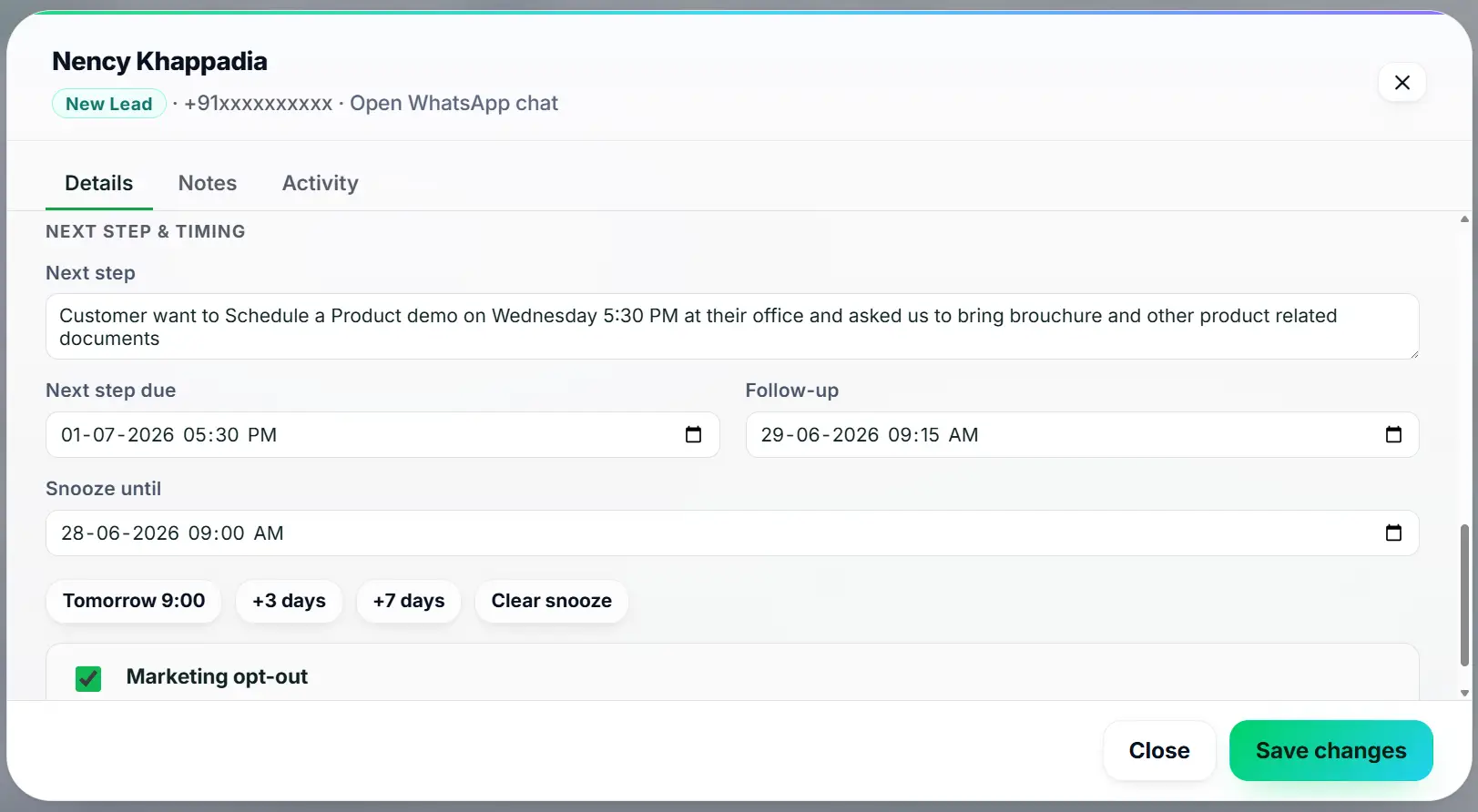
The Next Steps feature is a built-in task manager tied directly to specific WhatsApp conversations. You do not need a separate calendar app. You schedule the action right inside the chat window.
This is the most reliable method for managing a high-volume sales pipeline.
Stop Relying on Your Memory
Sales reps are optimistic. They think they will remember to text a prospect back on Friday afternoon. They usually forget.
Sticky notes get lost. Calendar alerts get ignored. This lack of discipline bleeds revenue from your business every single day.
Key Insight: Ask4Lead removes human memory from the equation entirely. By scheduling a Next Step, the system forces accountability. The reminder sits in the Work Queue until the agent explicitly completes it.
Scheduling a Next Step, Step by Step
Creating a foolproof reminder takes five seconds:
- Finish the chat: You agree to contact the customer again later.
- Open the sidebar: Click the “Add Next Step” button in the lead’s profile.
- Write a note: Type exactly what you need to do (e.g., “Send revised pricing”).
- Set the date: Choose the exact day and time for the reminder.
- System alerts you: The task appears in your Work Queue precisely when it is due.
Core Capabilities of Next Steps
Our follow-up software is built specifically for WhatsApp sales:
- Tasks are hard-linked to the WhatsApp conversation. Clicking the reminder opens the chat instantly.
- Overdue tasks turn bright red to demand immediate attention from the agent.
- You can view a timeline of all completed past next steps to prove sales activity.
- Managers can assign follow-up tasks to junior reps to guide their daily actions.
- The specific note you write (e.g., “Ask about budget”) ensures you have context before you type the message.
- Clearing a follow-up automatically updates your daily productivity metrics.
External Calendars vs. Native Next Steps
| External Calendar Alerts | Ask4Lead Next Steps |
| Requires switching apps to schedule | Scheduled directly inside the chat window |
| Alert provides no context | Alert includes the full customer profile and note |
| Cannot open the chat directly | One click opens the exact WhatsApp conversation |
| Managers cannot track completion easily | Managers view completion metrics in the dashboard |
How Follow-Ups Connect to Your CRM
Next Steps are the fuel for your daily Work Queue. Every time you schedule a reminder, you are programming your future workload. This keeps your Sales Pipeline flowing constantly.
- Work Queue: The centralized list where all your scheduled Next Steps appear when due.
- Sales Pipeline: Consistent follow-ups are the only way to move cards from “Negotiation” to “Closed Won”.
- Reports and Analytics: Managers track how many tasks reps complete daily.
Teams That Master Automated Follow Ups
- Real Estate Brokers schedule follow-ups to check if a buyer has secured their mortgage pre-approval yet.
- B2B Sales Executives set reminders to ping the decision-maker exactly 48 hours after sending a contract.
- Insurance Agents use long-term Next Steps to call clients right before their annual policy renewal date.
- Recruitment Agencies set reminders to ask candidates how their first day at the new job went.
FAQs
Is this an automated message sent to the customer?
No. A Next Step is an internal task reminder for your human sales rep. It tells the rep to send a message. If you want fully automated sending, use WhatsApp Campaigns.
Where do I see my due tasks?
All due and overdue tasks appear at the very top of your daily Work Queue. You also receive an in-app notification.
Can I assign a follow-up to someone else?
Yes. If you are a manager or if the conversation is transferred, you can assign a specific Next Step to another team member to handle.
What happens if I ignore the reminder?
The task turns red and is marked as overdue. It remains permanently visible in your Work Queue until you officially complete it or reschedule it.
Can I have multiple Next Steps for one lead?
Currently, the system focuses on the single most important Next Step to prevent clutter and ensure absolute clarity on what must happen next.
Can a manager see if I am completing my tasks?
Yes. Managers have reporting dashboards that show exactly how many tasks are pending, completed, or overdue for every agent on the team.
Related Features
AI Sales Assistant
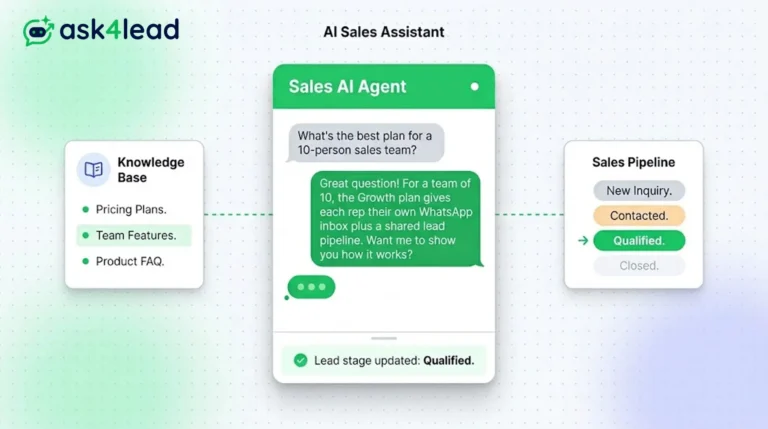
Our AI Sales Assistant reads WhatsApp messages, checks your knowledge base & replies 24/7 turning every chat into a qualified lead.
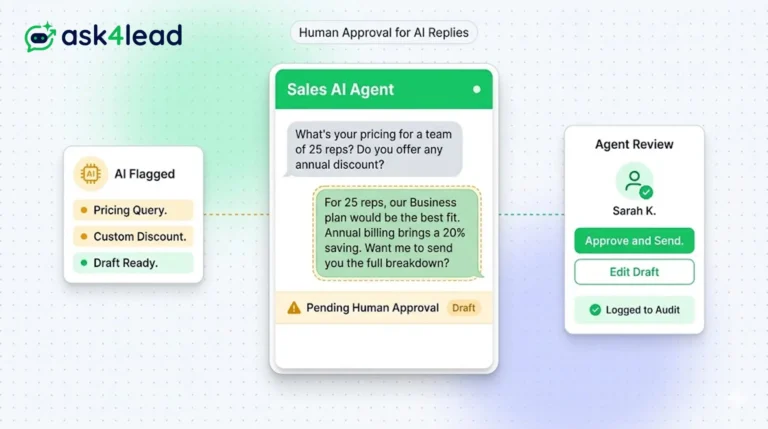
Human Approval for AI Replies
Our CRM requires human approval for AI replies whenever confidence is low. You can review, edit, and approve drafts before the customer sees them.
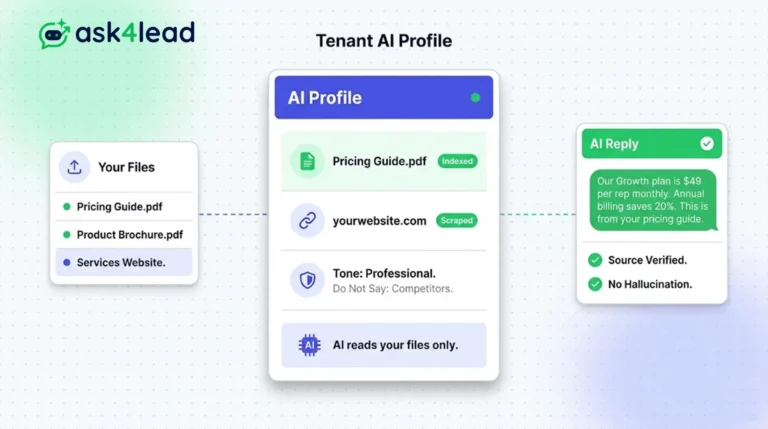
Tenant AI Profile
Tenant AI Profile ensures your WhatsApp assistant speaks exactly like your brand. You upload your documents, and the AI uses only that knowledge.