
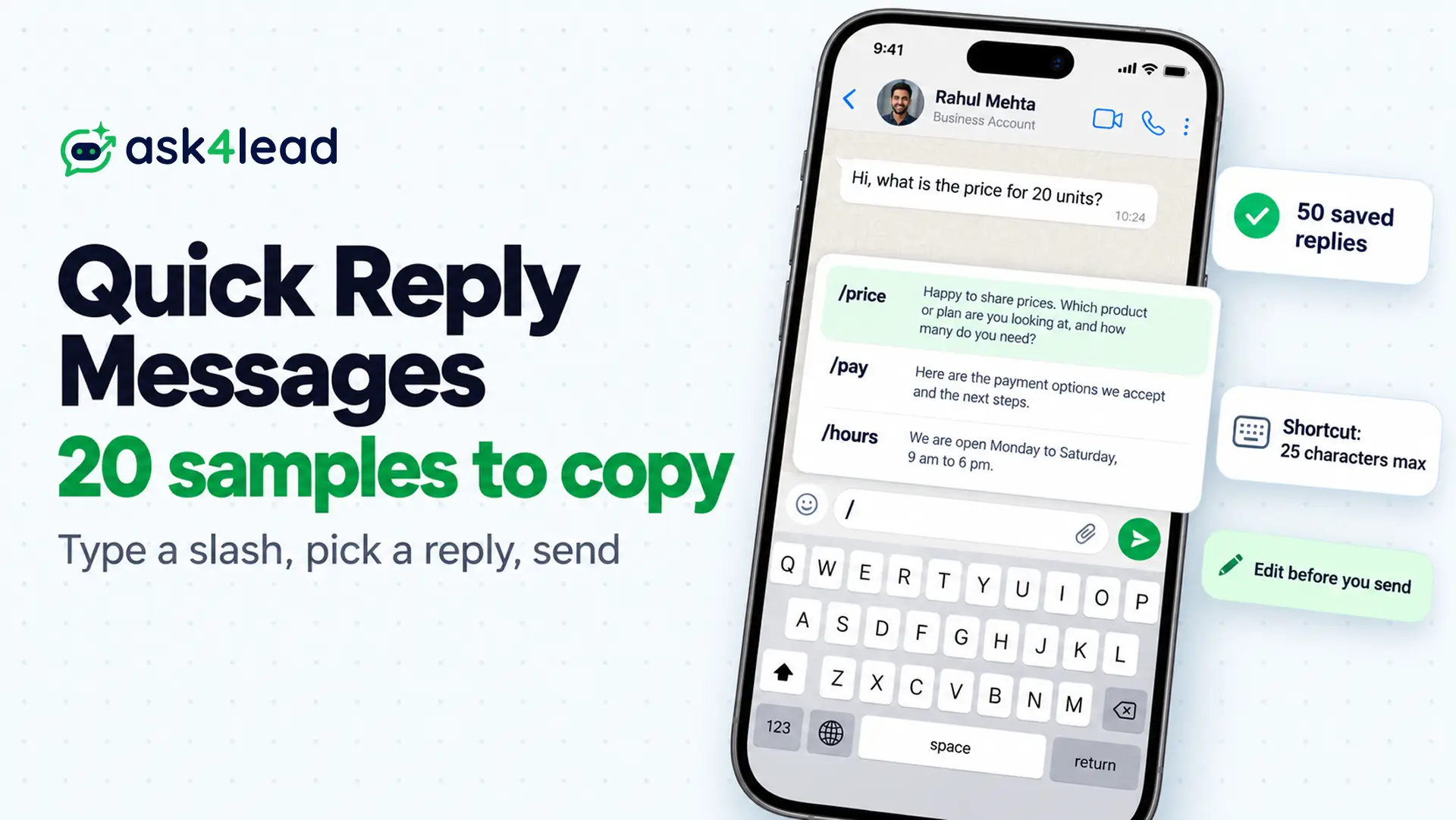
Quick reply messages are saved answers that you send with a shortcut instead of typing them again. In the WhatsApp Business app, you type “/” in a chat, then pick a reply and send it. However, the same two words also name the tap buttons inside Meta’s approved templates, and those work very differently.
Below you get 20 quick reply messages for a business, 3 button templates and 4 personal samples, plus the limits from WhatsApp’s own help pages. Meanwhile, teams that share one inbox usually move to the WhatsApp Business API, which is Meta’s paid version for businesses.
Which quick reply messages do you need?
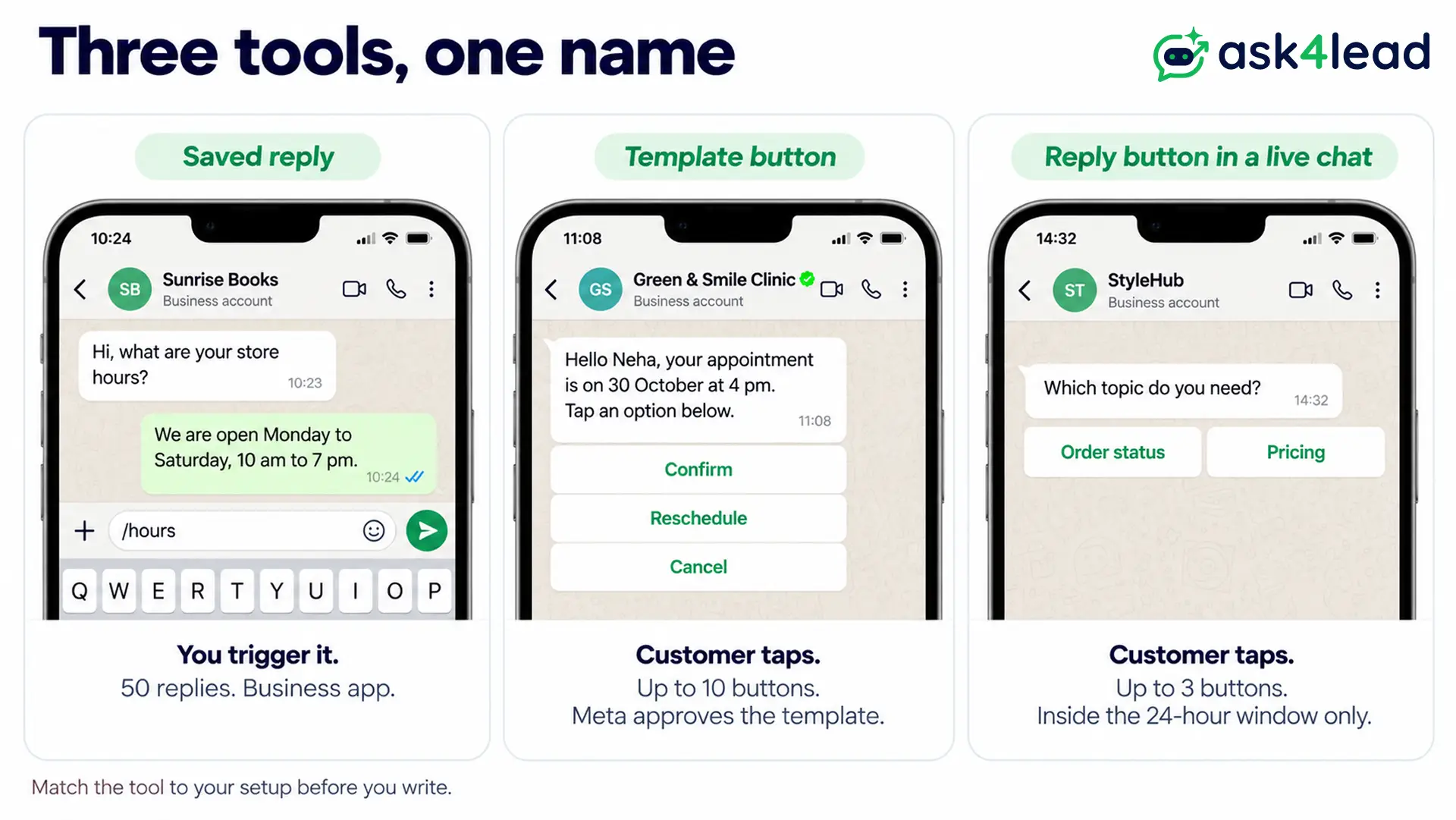
First, WhatsApp uses “quick reply” for three different tools. A saved reply is text you insert yourself, while a template button is a tap option on an approved message, while a reply button is a tap option inside a live chat. Pick your row before you write any quick reply messages.
| Tool | Where it runs | Who triggers it | Key limits | Needs Meta approval? |
| Saved reply | WhatsApp Business app | You, by typing “/” | 50 replies, 25-character shortcut | No |
| Template quick reply button | Business API | The customer taps | 10 buttons, 25 characters each | Yes, Meta reviews the template |
| Reply button in a live chat | Business API | The customer taps | 3 buttons, 20 characters each | No, but only inside the 24-hour window |
| Team snippet | Shared inbox software | An agent, by typing “/” | Set by the software | No |
However, auto replies are a separate tool. A greeting or away message sends itself, whereas a saved reply waits for a person to press send.
For software that answers alone, compare a WhatsApp AI agent and a chatbot.
How to create quick reply messages in the WhatsApp Business app
Open Tools, tap Quick replies, add a message and a shortcut, then save. WhatsApp’s help page lists the same steps for Android and iPhone, and the app keeps up to 50 replies.
- Open Tools in WhatsApp Business, then tap Quick replies.
- Next, tap the plus sign to start a new reply.
- Then tap Message and write your text. Also, you can attach a photo or video on a phone.
- Tap Shortcut and type a short word, such as /hours.
- Tap Save.
To send one, open a chat, and then type “/” or tap the paperclip and choose Quick reply. The text lands in the message box first, so you can edit it before you send. The app also builds default replies, such as your hours and address, from your business profile.
Limits WhatsApp publishes for quick reply messages
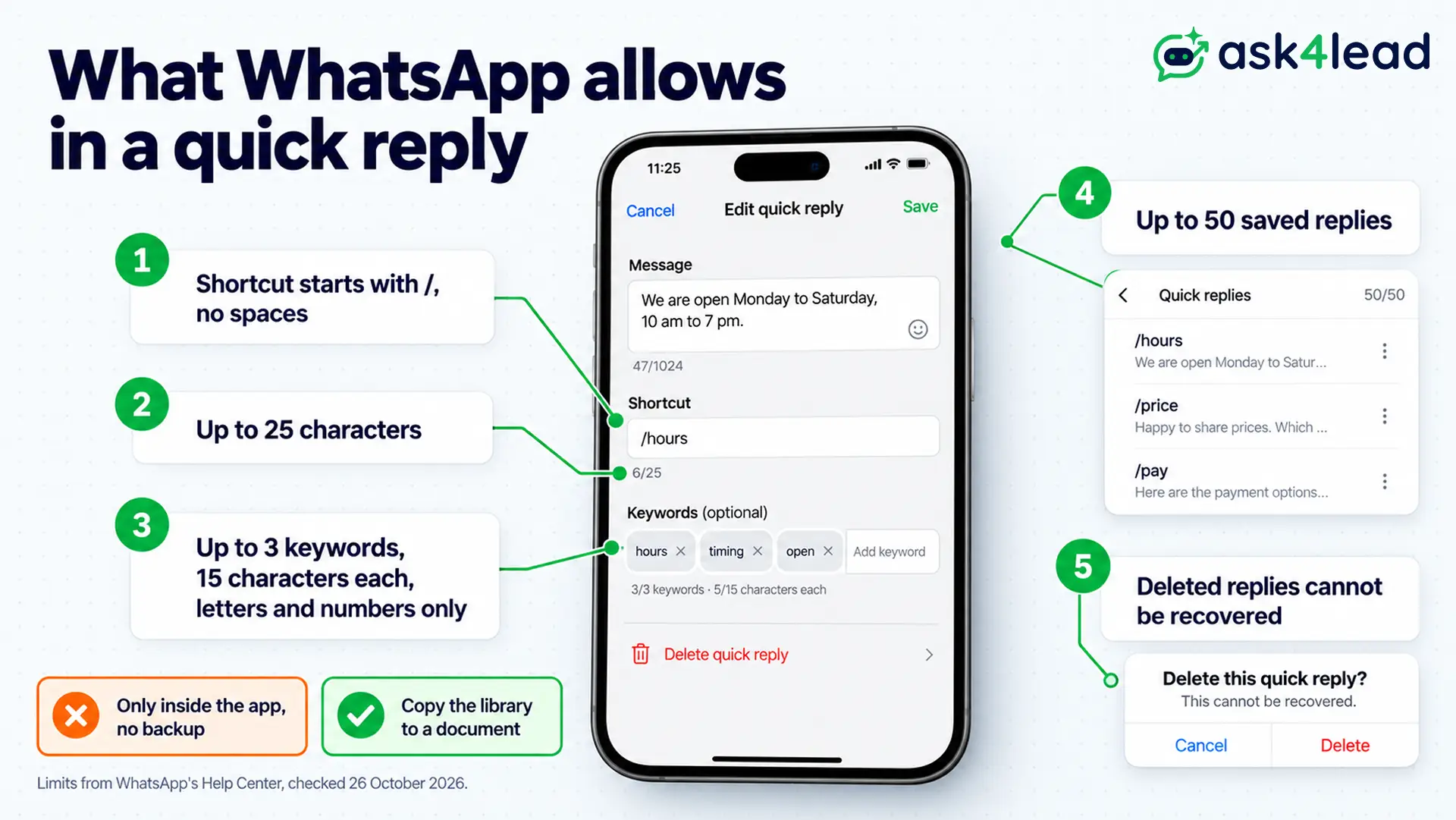
WhatsApp states these rules on its can’t save a quick reply page, so you can trust them more than most blog posts.
| Rule | Limit |
| Saved replies | 50 |
| Shortcut length | 25 characters |
| Shortcut format | Starts with “/”, no spaces |
| Keywords per reply | 3, each up to 15 letters or numbers |
| Photos and videos | Not supported on Web or Desktop |
| Deleted or lost replies | Cannot be recovered |
However, WhatsApp gives no limit for the message length. Some guides quote 500 characters, so test a long reply before you rely on it.
The last row matters most, because a lost phone takes all 50 replies with it. WhatsApp tells you to keep a copy outside the app, so paste your library into a shared document today.
Also add up to three keywords to each reply, using words customers type, such as “price” or “rate”. WhatsApp does not explain how search uses them, so test one on your phone.
20 quick reply messages to copy
Each message below has a shortcut and one next step for the customer, because a reply without a next step stalls the chat. Replace every [bracket] before you send, because WhatsApp will not warn you about one you forgot.
Quick reply messages for the first minute
- /hi Hello [Name], thanks for messaging [Business]. Are you asking about a product, an order or a booking? Reply with one word, and then I will take it from there.
- /hours We are open [Monday to Saturday, 10 am to 7 pm]. Messages sent after that get a reply by [11 am] on the next working day.
- /after Thanks for writing to [Business]. Our team is offline until [10 am]. Please leave your name and your question, so we can reply first thing.
- /who This is [Priya] from [Business]. I will look after your request from here, so you do not need to repeat yourself.
Quick reply messages for price and payment
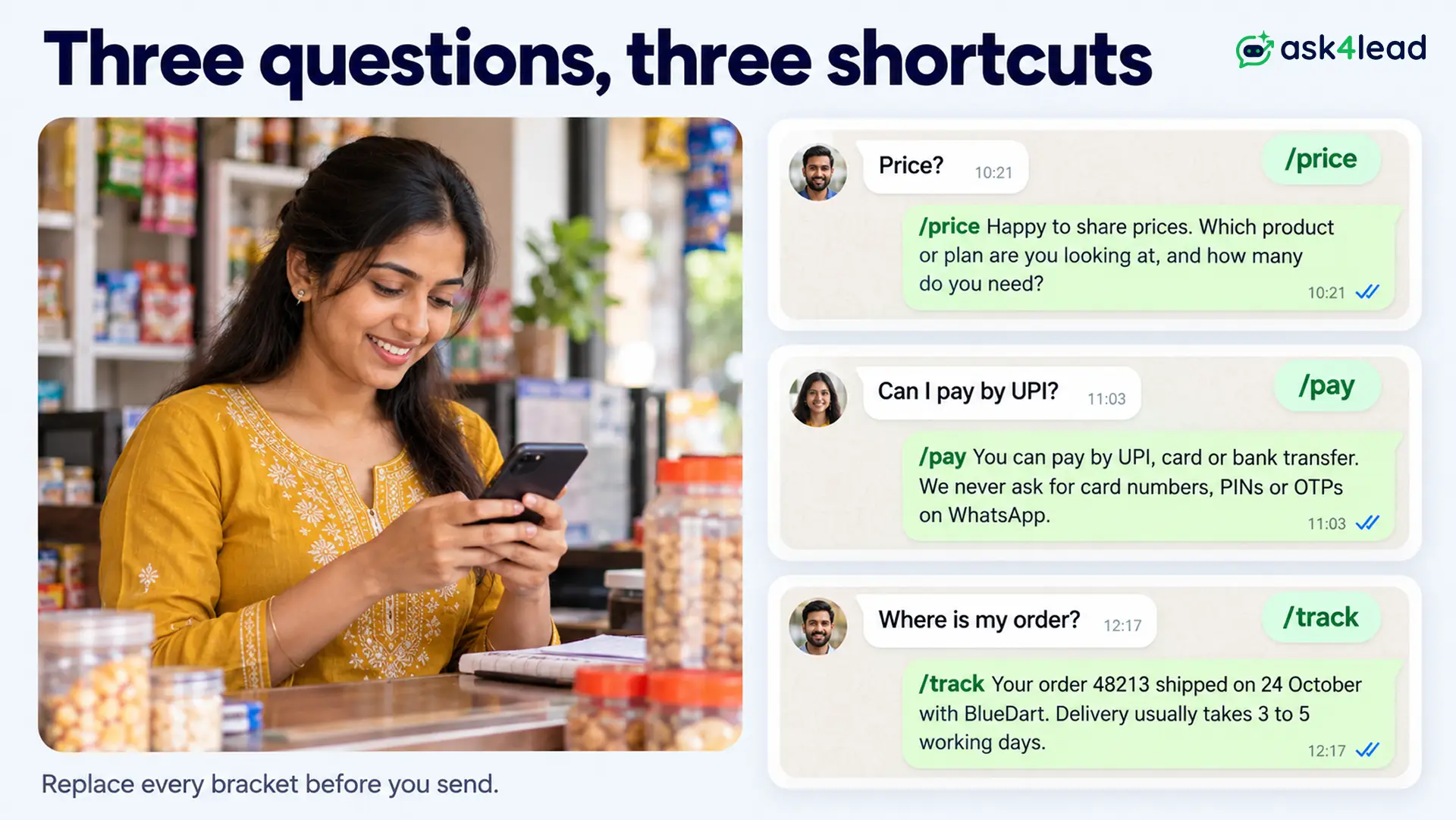
- /price Happy to share prices. Which product or plan are you looking at, and how many do you need? Then I will send the exact rate.
- /pay You can pay by UPI, card or bank transfer. Also, we never ask for card numbers, PINs or OTPs on WhatsApp. Send me your order number, and then I will share the [payment link].
- /gst For a GST invoice, please send your business name, GSTIN and billing address. Then I will send the invoice in this chat within [1 working day].
- /nodiscount We do not run discounts right now, because our prices already include [free delivery].
- /stock That item is out of stock until about [15 November]. Shall I reserve the next batch for you, or suggest a similar product?
Quick reply messages for orders and delivery
- /track Your order [Order ID] shipped on [date] with [courier]. Track it here: [link]. Since delivery usually takes [3 to 5] working days, expect it by [date].
- /pin Please share your 6-digit PIN code. Then I will check delivery to your area and give you a date.
- /late Sorry, your order [Order ID] is running late because of [reason]. The new date is [date], so I will check again on [date] and message you here.
- /return You can return unused items within [7] days of delivery in the original pack. Send me your order number and a photo, and then I will start the return.
Quick reply messages for problems
- /sorry I am sorry this happened, so I have noted [the issue] on order [Order ID]. I will come back with an answer by [time] today.
- /refund I have started your refund of [amount]. Because banks differ, it usually reaches your account within [5 to 7] working days, depending on your bank.
- /manager I want this solved properly, so I am asking [Name], our manager, to look at it. [Name] will message you by [time].
Quick reply messages for bookings and follow-ups
- /book To book, please reply with your name and your preferred date and time. Then I will confirm the slot in this chat.
- /resched No problem. Which new date and time suits you? Then I will move your booking and confirm it here.
- /review Thanks for choosing [Business]. Because reviews help other buyers, please leave a short one for [product]: [review link].
- /ping Hi [Name], I am checking whether you still need [product]. While you decide, I can answer questions or hold your order for [2 days].
How to write quick reply messages that do not sound canned
In short, good quick reply messages answer one question, ask one back and name the next step. Each stays under three lines, so it reads like a person typed it. For a first message, also see these WhatsApp introduction message samples.
- Give one job per reply: a price reply that also explains returns buries both
- Keep facts in brackets: hours, return days and prices go stale, so set a monthly review date
- Edit before you send: the text lands in the box, so add a name or a detail
A missed bracket costs trust: you send /hi and the customer reads “Hello [Name], thanks for messaging [Business]”. That looks like a bot, so the customer may stop replying. A quick scan for “[” before you press send prevents it.
Build your first 10 quick reply messages from real chats
Count the questions in your last 100 chats, then write replies for the top ones first. For example, say 31 chats ask about price, 22 about delivery, 14 about payment and 9 about hours. Those four topics cover 76 of 100 chats, so four replies handle most of your typing.
Then do the time arithmetic. Say an agent types the same 40-word answer 30 times a day. Typing takes about 40 seconds and a shortcut takes about 8, which are example timings, so measure your own. Therefore, the saving is 30 × 32 = 960 seconds, or 16 minutes a day. Over 26 working days, that is about 7 hours.
Quick reply buttons in WhatsApp API templates
A template quick reply button is a tap option under an approved message, such as “Confirm” or “Reschedule”. Meta’s template components page sets the rules.
Because customers tap instead of typing, you get cleaner answers.
| Rule | What Meta says |
| Quick reply buttons per template | Up to 10 |
| Label length | 25 characters |
| Mixing with link or phone buttons | Group all quick reply buttons together, not between other buttons |
| Four or more buttons | The template cannot be viewed on WhatsApp desktop clients |
| More than three buttons | Two show first, and the rest sit behind “See all options” |
Keep your first set to three buttons, so every phone shows all of them. Also, a body cannot start or end with a variable, so end on a fixed sentence. So here are three templates with sample values for the form.
Appointment reminder (Utility), with buttons “Confirm”, “Reschedule” and “Cancel”:
Hello {{1}}, your appointment at {{2}} is on {{3}} at {{4}}. Tap an option below, and we will confirm it in this chat.
Festival offer (Marketing), with buttons “Show me offers”, “Not now” and “Stop promotions”:
Hello {{1}}, our {{2}} sale gives {{3}} off {{4}} until {{5}}. Tap an option below, so our team can reply here.
Delivery notice (Utility), with buttons “Change address” and “Talk to support”:
Hi {{1}}, your order {{2}} is out for delivery today. If nobody is home, tap an option below, and then we will arrange a new time.
However, the category sets the price. From 1 October 2026, India’s rate is ₹0.115 per delivered Utility message and ₹0.8631 per delivered Marketing message, before GST. For example, send 500 appointment reminders as Utility and you pay 500 × ₹0.115 = ₹57.50. However, if a discount line pushes them into Marketing, the same 500 cost 500 × ₹0.8631 = ₹431.55, which is 7.5 times more.
Also, Meta’s pricing page holds the live rate card. A “Stop promotions” button also gives customers an easy way out, and Meta names a quick reply button as a common opt-out. Meanwhile, get consent first with this WhatsApp opt-in guide. If a template bounces, see why a WhatsApp template gets rejected.
Reply buttons inside a live chat
Meta’s reply buttons page allows 3 buttons with labels up to 20 characters. Since these are not templates, you can send them only while the 24-hour window is open. Typed replies in that window are service messages, and Meta gives each number 1,000 free ones a month, then charges ₹0.115 from the 1,001st.
Share quick reply messages across a team with Ask4Lead
Ask4Lead, a humanized AI WhatsApp chatbot + CRM, turns quick reply messages into a team library. Its Chat Snippets feature works like the app: an agent presses “/” and picks a saved reply. Admins create global snippets for everyone, while each agent can keep personal ones.
Only Admins and Managers can edit a global snippet. Snippets are text only, so link to a hosted image or PDF instead. They have no variables either, so keep your [brackets] and fill them by hand.
For tap buttons, submit a template in WhatsApp Templates, where you pick the category and add quick reply buttons. Answers land in the shared team inbox, where you can assign each chat. Snippets do not send themselves, so a person still presses send.
If you answer fewer than five repeated questions a day, a notes file does the same job. Choose a shared library when several people answer one number, as in this guide to a shared inbox for multiple agents.
Quick reply messages for friends, family and work
WhatsApp lists saved replies under WhatsApp Business, so the regular app may not offer them. For personal chats, use your phone keyboard’s text replacement setting. These four messages cover the usual moments.
- In a meeting: I am in a meeting until [3 pm]. I will reply as soon as I am out.
- Driving: I am driving right now. I will message you when I park, around [5:30 pm].
- Need time: Got your message. I need until [tomorrow noon] to give you a proper answer.
- Asking for a quick reply: Could you reply by [5 pm today]? I need your answer to confirm [the booking].
FAQs
1. What are quick reply messages on WhatsApp Business?
They are saved messages you insert by typing “/” and picking a shortcut. You send them yourself, and you can edit the text first. They are not auto replies.
2. How many quick replies can you save on WhatsApp Business?
WhatsApp allows up to 50. Keep a copy outside the app, because lost replies cannot be recovered.
3. How do you use a quick reply on WhatsApp?
Open a chat and type “/”, then pick the reply.
4. What is the character limit for a quick reply shortcut?
A shortcut can have up to 25 characters. It must start with “/” and cannot contain spaces.
5. What is the difference between a quick reply and a quick reply button?
A quick reply is saved text that you insert. A quick reply button is a tap option on a template that Meta approves, and the customer taps it.
6. How do you ask someone for a quick reply?
Name a time and the reason, such as “Could you reply by 5 pm today?” A deadline works better than “ASAP”.
Build your reply library this week
Match the tool to your setup, then start with these 20 quick reply messages. Slash shortcuts save typing time, while template buttons save your customers’ effort.
Before you launch, check that you have:
- Counted your top five repeated questions from the last 100 chats
- Saved a shortcut for each, with brackets for facts that change
- Copied the whole library into a document outside the app
- Chosen Utility or Marketing for any template with buttons
Answer repeat questions without retyping
When one number serves a whole team, retyping the same answers wastes the hour that matters.
Ask4Lead gives your team four tools for it. Chat Snippets hold your shared replies, WhatsApp Templates carry your quick reply buttons, and the shared team inbox routes each chat.
The AI Knowledge Profile answers from your own content, with human approval for AI replies when it is unsure.
