
While the AI Sales Assistant handles many queries automatically, human agents still need to step in for complex negotiations.
When they do, they should not waste time typing out repetitive paragraphs or searching for links.
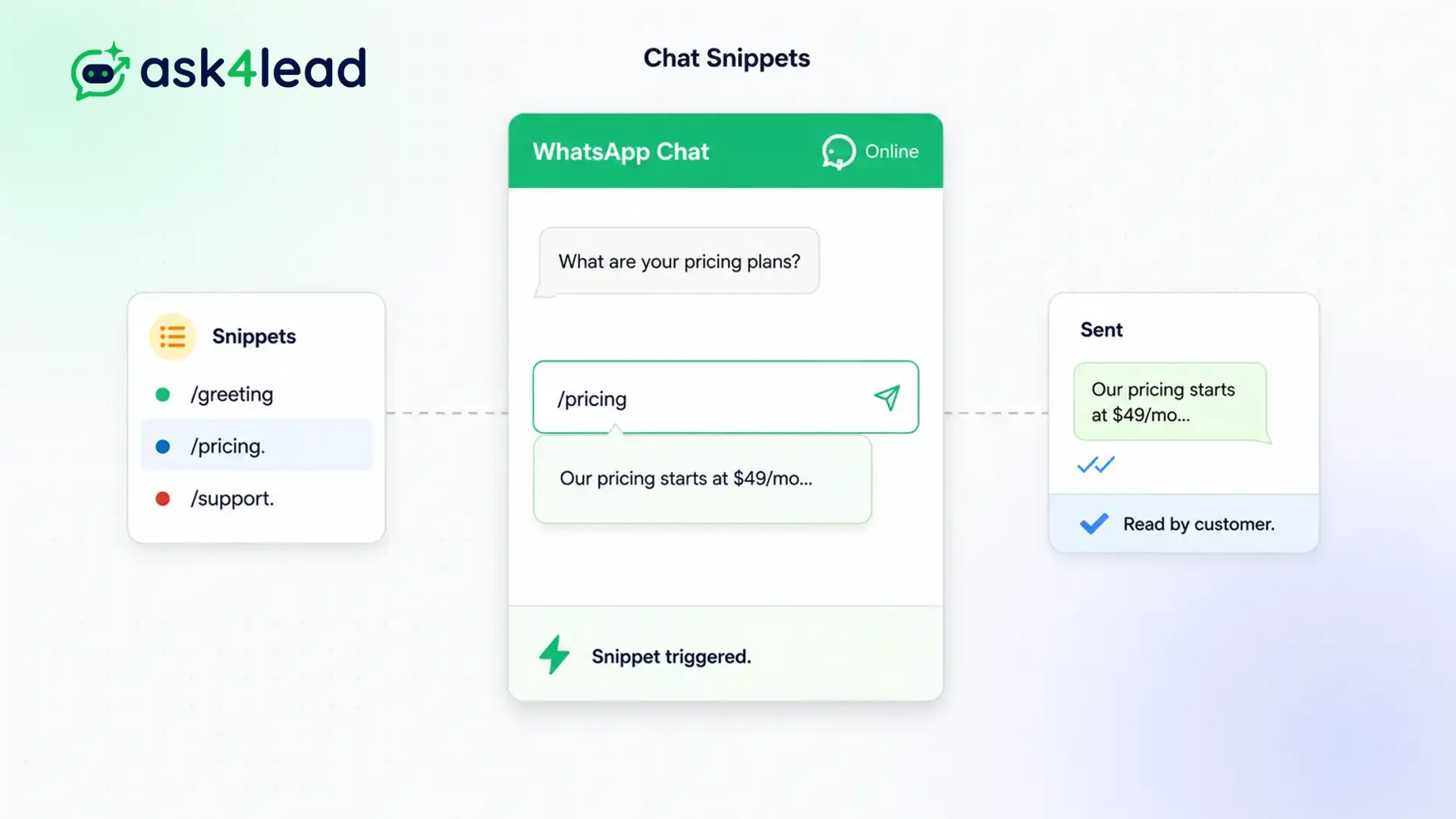
Stop typing the exact same directions, pricing details, and meeting links manually. Type a forward slash, select the snippet, and hit send.
Save hours every week. Keep messaging consistent.
Why You Need WhatsApp Chat Snippets
Your team answers the same five questions every single day.
While the AI Sales Assistant handles many queries automatically, human agents still need to step in for complex negotiations. When they do, they should not waste time typing out repetitive paragraphs.
Chat snippets allow your agents to pull pre-approved text templates into any live conversation instantly.
Stop Wasting Time on Repetitive Typing
Manual typing causes two massive problems: it is slow, and it leads to inconsistent messaging.
One agent might explain your refund policy perfectly. Another agent might forget a crucial detail, causing legal or customer service headaches later.
Key Insight: Snippets guarantee that every customer receives the exact, company-approved answer. Your team replies faster, and your brand messaging remains 100% consistent.
How to Use Chat Snippets, Step by Step
Using a saved reply takes less than two seconds:
- Open the chat: Click on any active conversation in the shared inbox.
- Type a slash: Press the `/` key on your keyboard.
- View the menu: A popup menu appears displaying all your saved snippets.
- Select the snippet: Click the one you need or keep typing to filter the list.
- Hit send: The text instantly pastes into the chat box, ready for you to send.
Core Capabilities of the Snippets Tool
Our snippets feature is built for high-speed sales environments:
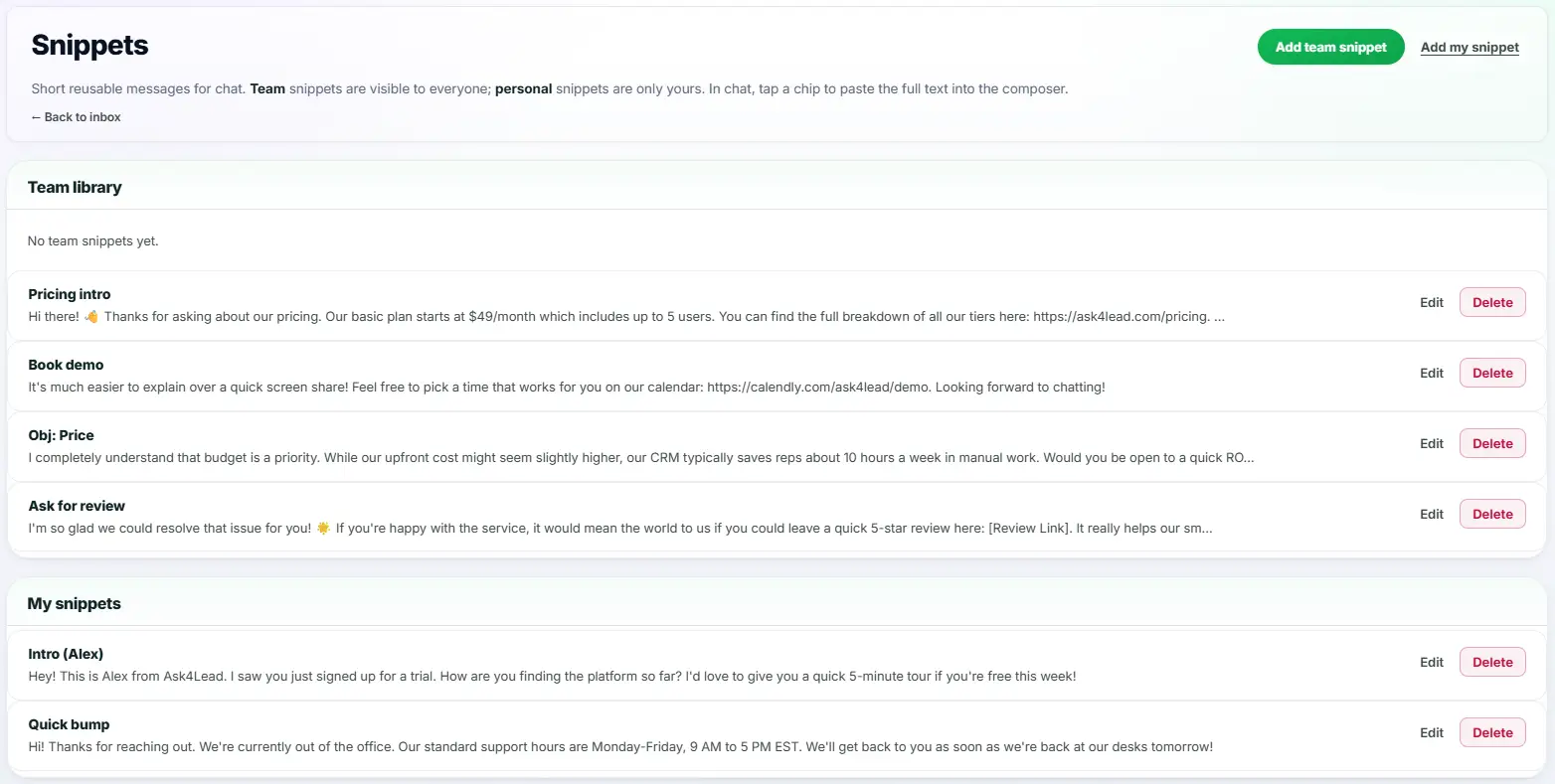
- Admins can create global snippets that the entire team shares. This is perfect for company policies.
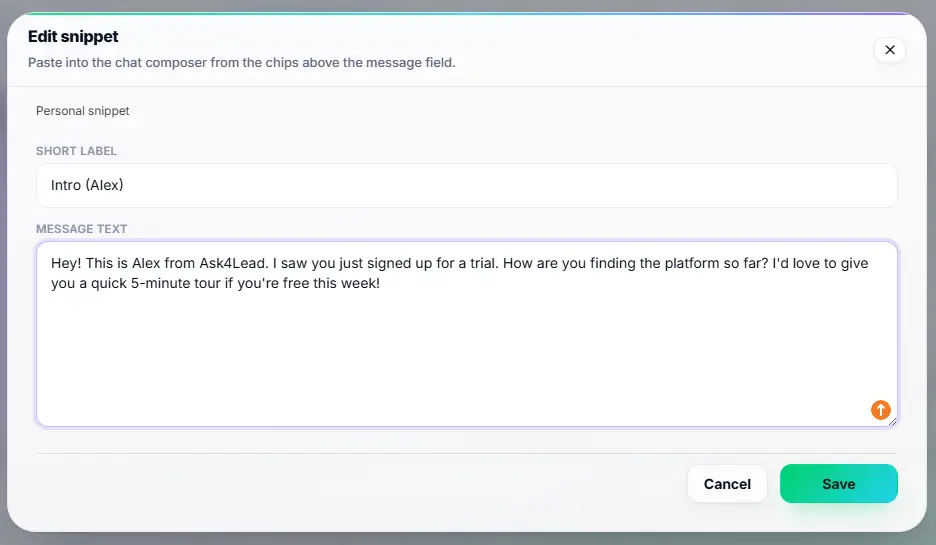
- Individual agents can create personal snippets that only they can see. This is great for custom signatures.
- Snippets support full formatting, including bold text, italics, and emoji integration.
- You can include clickable URLs inside snippets to send meeting links or brochures instantly.
- The search filter works in real time. Typing `/pricing` instantly isolates the pricing snippet.
- You can edit the pasted text before hitting send to add a personalized touch.
Chat Snippets vs. Standard Copy & Paste
| Standard Copy & Paste (Notepad) | Ask4Lead Chat Snippets |
| Requires switching tabs or apps | Built directly into the chat interface |
| Agents use outdated versions | Admins update global snippets for everyone instantly |
| Hard to organize and find | Instant keyboard search using the “/” command |
| Breaks formatting often | Retains perfect WhatsApp formatting and emojis |
How Snippets Connect to Your CRM
Chat snippets are natively integrated into the WhatsApp Shared Team Inbox. They provide the perfect manual counterpart to the automated AI Sales Assistant.
- WhatsApp Shared Team Inbox: The primary workspace where agents trigger snippets.
- AI Sales Assistant: The bot handles the initial chat, and the agent uses snippets for the handover.
- Quotes: You can use a snippet to send a standard introduction right before sending a custom quote.
Industries That Maximize Saved Replies
- Real Estate Agents use snippets to send standard directions to model homes and open house schedules.
- E-commerce Support uses them to explain return policies, shipping times, and refund tracking links.
- SaaS Sales Teams use them to send standard Calendly links for booking demo calls quickly.
- Healthcare Clinics use them to send pre-appointment instructions, like fasting rules for blood tests.
FAQs
Can I create snippets just for myself?
Yes. Ask4Lead supports both global snippets (available to the whole company) and personal snippets (available only to the agent who created them).
Is there a limit to how many snippets I can save?
No. You can save an unlimited number of snippets. The quick search function ensures you can always find the right one instantly.
Can I include images or PDFs in a snippet?
Currently, chat snippets are text-based. However, you can easily include URLs that link directly to your hosted images, PDFs, or website pages.
How do I update a global snippet?
Only Admins and Managers can edit global snippets. Once updated in the settings, the new text is instantly available to every agent in the workspace.
Do snippets work on the mobile view?
Yes. The forward-slash command menu works perfectly on mobile devices, saving you from typing long paragraphs on a small keyboard.
Will the customer know I used a saved reply?
No. The text simply pastes into your chat box. You can even edit it to add the customer’s name before sending it, making it look 100% personalized.
Related Features
AI Sales Assistant
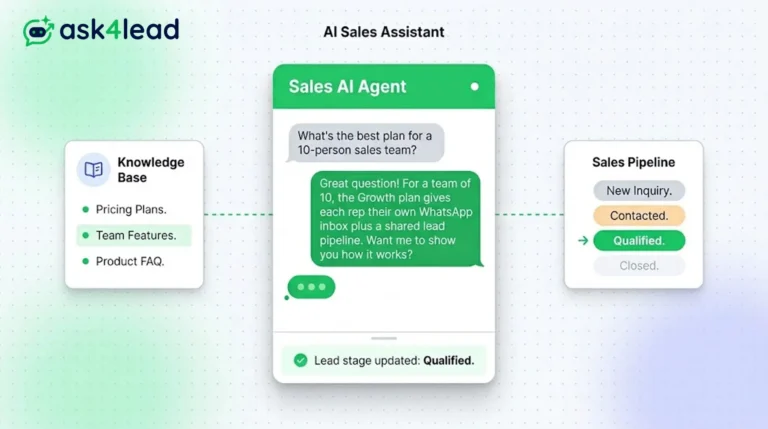
Our AI Sales Assistant reads WhatsApp messages, checks your knowledge base & replies 24/7 turning every chat into a qualified lead.
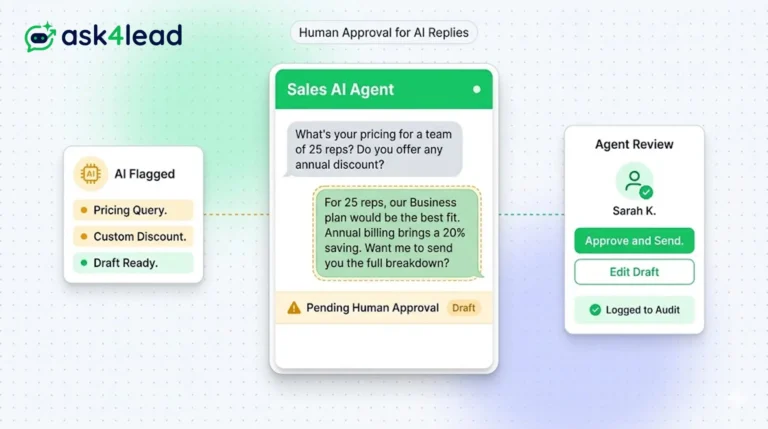
Human Approval for AI Replies
Our CRM requires human approval for AI replies whenever confidence is low. You can review, edit, and approve drafts before the customer sees them.
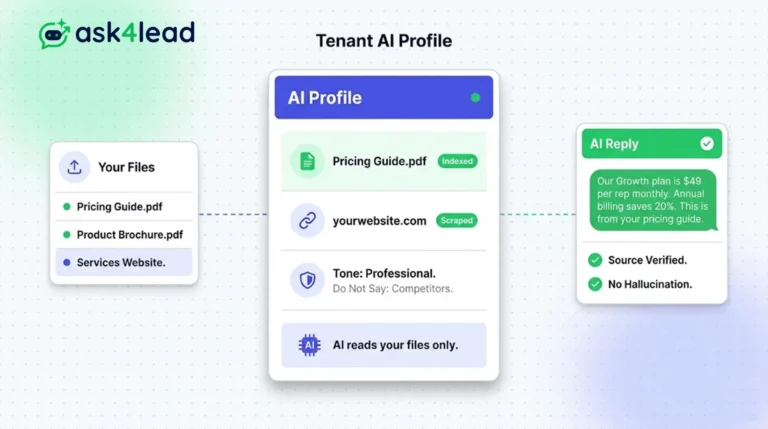
Tenant AI Profile
Tenant AI Profile ensures your WhatsApp assistant speaks exactly like your brand. You upload your documents, and the AI uses only that knowledge.