
Meta Business Verification is the identity check Meta runs on your Business Portfolio before it lets you scale WhatsApp messaging, raise ad limits, or show a verified badge.
It compares 3 fields against 1 official document:
- Your legal business name
- Your registered address
- Your phone number or business email
Most rejections trace back to just 1 of those 3 fields. Meta rarely says which one.
Quick answer: Match your legal name, address, and phone number to 1 accepted document exactly, wait 24 hours, then resubmit that single corrected file. Still rejected after 2 genuine attempts? Escalate through Meta Verified or a direct support ticket instead of trying again.
Key Takeaways
- Most rejections are a name, address, or document-type mismatch, not a problem with the business itself.
- A free DUNS number can skip document upload entirely if Meta finds your business in that public registry.
- Sole proprietors should enter their own legal name, not a trade name that appears on no document.
- Resubmitting within hours reads as automated behavior and often resets the review clock.
- A blocked SMS shortcode, not a document, causes some “verification stuck” cases. That fix takes 2 minutes.
What Meta Business Verification Actually Checks
Meta Business Verification confirms a real, legally registered business owns the Business Portfolio. It is separate from phone verification and domain verification, though reviewers weigh all 3.
What the System Compares
Meta compares your legal name, address, and phone number in Business Settings against the same details on 1 uploaded document.
The legal name field needs a character-level match, not a close one.
Business vs. Phone vs. Domain Verification
These 3 checks get confused constantly. Mixing them up means fixing the wrong problem.
| Check | Confirms | Where it lives |
| Business verification | Your business is real | Security Center |
| Phone verification | You control the account phone number | An OTP prompt |
| Domain verification | You control the website domain | Brand Safety, via DNS TXT |
A rejected WhatsApp template is a 4th, unrelated failure. It blocks 1 message, not your whole Business Portfolio.
The Verification Match Ladder
Most guides list rejection reasons as a flat pile. That hides how Meta actually checks: in sequence, rung by rung.
A failure low down blocks review of everything above it. Ask4Lead calls this the Verification Match Ladder.
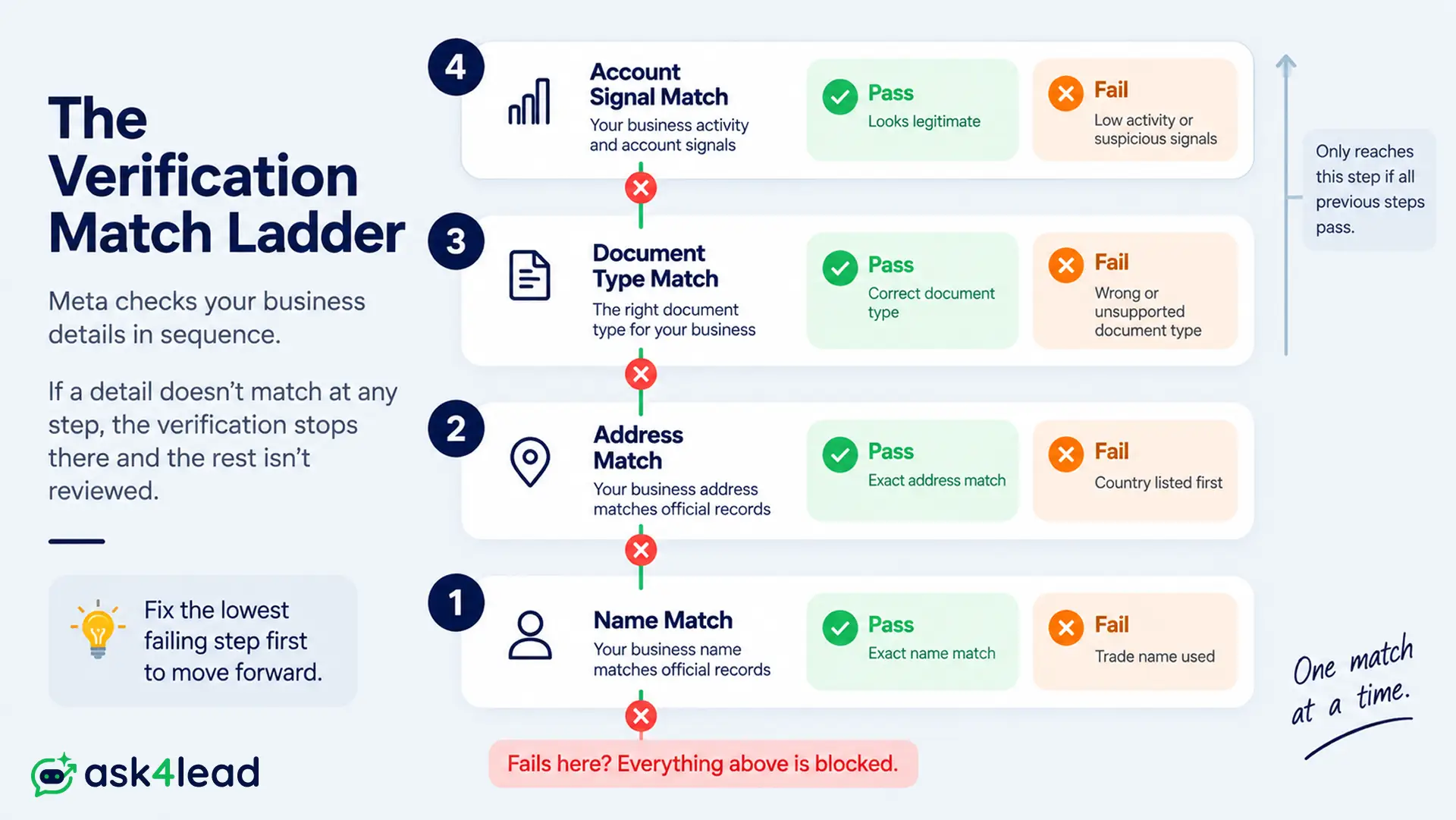
| Rung | What fails here | Fastest fix |
| Legal name | Trading name used instead of the registered name | Copy the exact name, suffix included |
| Address | Different format or word order than the document | Match the document’s exact wording |
| Document type | Screenshot, invoice, or self-built PDF | Use an officially issued document, or get a DUNS number |
| Account signal | Thin or inactive public presence | Add a live website and real page activity |
1. Legal Name Match
Your legal name in Business Settings must character-match your registration document, suffix included: LLC, Inc., Pvt. Ltd., or Ltda. A trading name or shortened brand name fails this rung immediately.
2. Business Address Match
Format matters as much as the address itself. A document with the country listed first, or “Private Limited” abbreviated to “Pvt. Ltd.” differently than Business Settings, reads as a mismatch.
3. Document Type Match
Meta only recognizes specific document categories. A bank screenshot, an invoice, or a self-built PDF fails as “not an accepted document type,” even with accurate data.
4. Account Signal Match
Once the document clears, Meta weighs the account: a live website, a domain email, and real page activity. A brand-new, inactive page reads as risk even with a perfect document.
Why the Documents You Already Have Get Rejected
Most businesses submit an incorporation or tax certificate first. The documents are valid; what they leave out causes the rejection.
The Missing-Phone-Number Problem
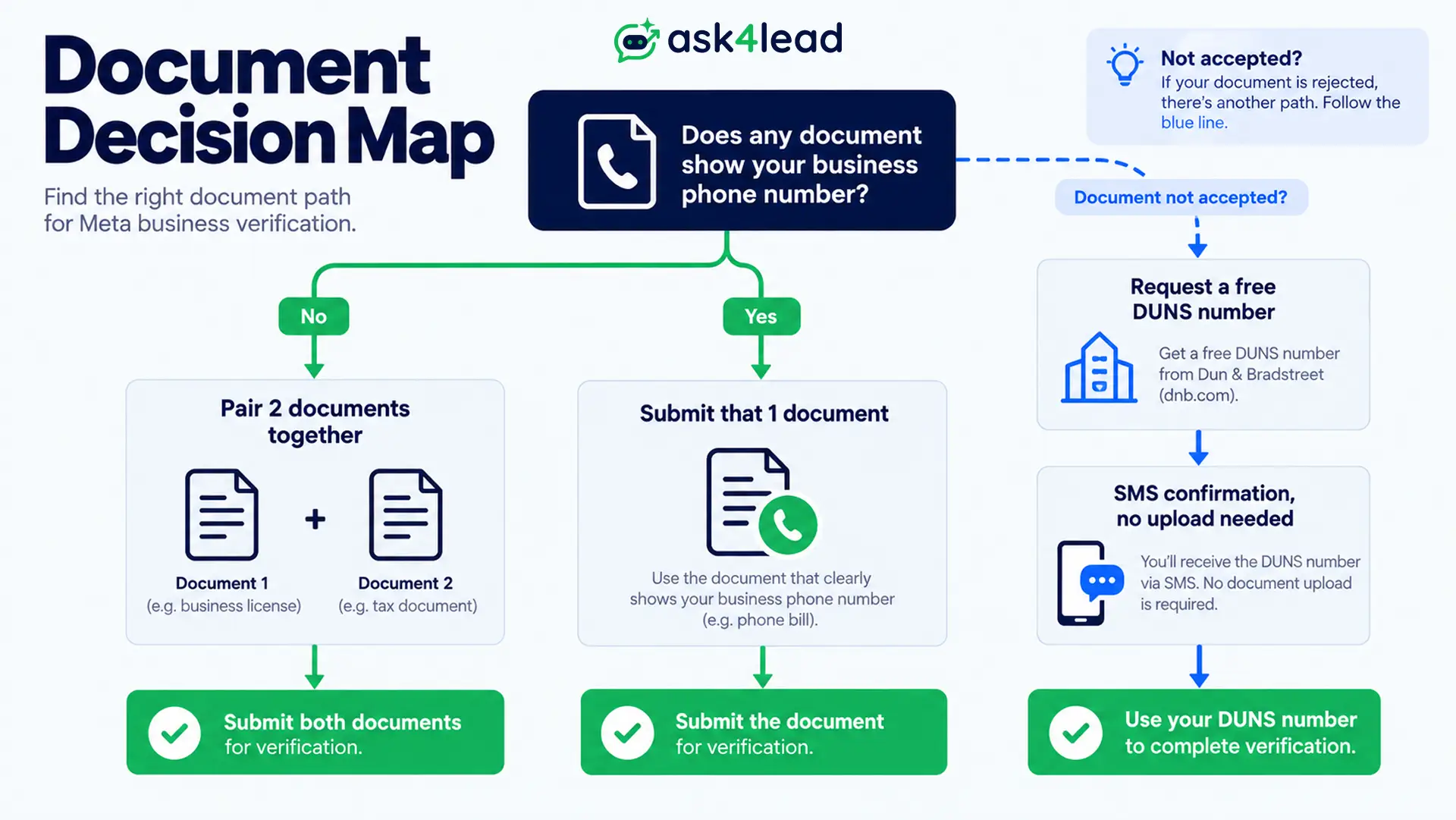
Incorporation certificates rarely carry a phone number. The fix is not a better document. It is a 2nd one:
- Your incorporation or tax certificate, for name and address
- A utility bill, bank statement, or carrier invoice, for the phone number
Meta matches across your submission, not inside a single file.
The Sole Proprietor Naming Trap
A sole proprietor with no separate registration hits a version of this almost nobody explains. If your trade name appears on zero government documents, entering it guarantees a mismatch.
The fix: enter your own legal, personal name exactly as your national ID shows it. Meta verifies the entity that legally exists, not the name on a shop sign.
The DUNS Number Shortcut Almost No One Uses
A DUNS number is a free business identifier from Dun & Bradstreet. Most businesses treat it as an optional extra for government contracts and skip it.
Here is what most guides miss:
- Meta checks your business against the public DUNS registry during verification.
- If it finds a match, document upload is skipped entirely.
- The flow shifts to a simple SMS confirmation instead.
- Approval can land within an hour of that step.
Requesting a DUNS number is free and usually resolves in a few business days. Stuck on repeated “not an accepted document type” rejections? Request one before your next attempt. There is no longer a document for Meta’s system to misclassify.
How to Fix a Rejected Verification, Step by Step
Work through these in order. Most businesses only need the first 2.
1. Match Your Legal Name Character for Character
Copy the legal name exactly, punctuation and suffix included, into Business Settings. If your brand name differs, submit a 2nd document connecting both, such as a trade name registration.
2. Pick a Document Type Meta Accepts
| Document | Good for | Watch out for |
| Incorporation certificate | Legal name, registration number | Usually no phone number |
| Tax document (GST, VAT) | Legal entity, tax ID | Address often abbreviated differently |
| Utility bill | Address, sometimes a phone number | Must be under 12 months old |
| Official bank statement | Name and address together | A screenshot gets rejected |
| DUNS number | Skips upload if Meta finds a match | Free; takes a few days |
3. Fix the Missing-Phone-Number Problem
Submit 2 documents together: 1 for name and address, 1 for the phone number. The match happens across both files, not inside 1.
4. Wait Before You Resubmit
Resubmitting within hours reads as automated behavior and often resets the queue. Fix the likely field, wait 24 hours, then send 1 corrected document.
While you wait, check account health if a WhatsApp number is already connected. It sometimes shows whether the hold is genuinely on Meta’s side.
The SMS Trap That Looks Like a Business Problem
Some “verification stuck” cases have nothing to do with documents. The real issue is a blocked text message that never arrives.
Meta sends codes from specific shortcodes. Phones that ever flagged unwanted texts can silently block that number without the owner noticing.
- Open Contacts and search for the number the code should arrive from.
- Greyed out or labeled blocked? Unblock it or save it as a real contact.
- Try voice call verification instead of SMS if it is offered.
- Rule this out before touching a single document.
What to Do When Meta Gives No Reason
The most common complaint: a generic “unable to verify” message with a “learn more” link that names no specific field.
1. Subscribe to Meta Verified
A paid subscription gives you access to a support chat that can escalate a repeatedly rejected case to a human reviewer, often over a screen share. It is the most consistently reported fix for month-long holds.
2. Open a Direct Support Ticket
A ticket at business.facebook.com/direct-support reaches a person more often than the automated loop in the main Help Center. State the document you submitted and what the rejection said.
3. Let Your API Provider Escalate
A registered WhatsApp Business API provider already has a working relationship with Meta’s partner support. Asking them to raise your case internally often beats reapplying solo for the 5th time.
Avoid a 5th or 6th attempt with unchanged documents. 2 genuinely corrected submissions both failing is the point to escalate.
Meta Verification and the WhatsApp Business API
Verification status directly controls how many people you can message and how fast campaigns scale.
What Happens While Verification Is Pending
Your number stays connected, but the hold caps your quality rating and messaging tier. Replies inside the 24-hour window still work. What stays locked:
- Broadcasting templates to a larger list
- Running WhatsApp campaigns
- Qualifying for the green verified badge
Get It Right Before Embedded Signup
Businesses that clear verification on attempt 1 share a habit: they matched their legal name, address, and email before starting Embedded Signup, not mid-flow. =
Every day a number sits capped is a day Click-to-WhatsApp ads convert slower than they should.
Get verified once, then let the setup handle itself.
Ask4Lead onboards new WhatsApp numbers through Meta’s own Embedded Signup, so the same match rules apply from 1 dashboard.
Once your Business Portfolio clears, AI-qualified lead capture and a shared team inbox start working immediately.
How Long It Actually Takes
| Stage | Realistic timeline |
| First automated review | 2 to 5 business days |
| Manual review after a flag | 1 to 3 weeks |
| Review after a resubmission | Resets to another 1 to 2 weeks |
| Meta Verified escalation | 24 to 72 hours once connected |
Businesses stuck for 2 to 3 months share 1 pattern: repeated resubmissions without changing the mismatch, and no access to a human reviewer.
Switching WhatsApp Business Solution Providers does not reset your verification status, so a stuck review is not a reason to delay that decision.
Mistakes That Keep Triggering the Same Rejection
- Resubmitting the identical document without changing anything
- Resubmitting within hours instead of waiting 24 hours
- Using a personal Gmail address instead of a domain email
- Editing Business Settings while a review is pending
- Entering a trading name instead of the full legal name
- Opening a 2nd or 3rd Business Portfolio during the same loop
FAQs
1. Why does Meta reject verification without a reason?
The flow does not include a field-level explanation by design. The cause is almost always a name, address, or document mismatch the system flags without naming.
2. How long after a rejection can I expect a decision?
An automated response lands in 2 to 5 business days. Manual review can take 1 to 3 weeks, and a further rejection resets that clock.
3. Can I use a personal bank statement?
Only an official bank-issued business statement works. A screenshot or self-made document usually gets flagged as not an accepted type.
4. Do I need a DUNS number for Meta verification?
Not required, but worth requesting if documents keep failing. A registry match skips upload entirely and moves to SMS confirmation.
5. Does this affect my WhatsApp Business API number?
Yes, indirectly. Your number stays connected, but a rejected Business Portfolio caps your messaging tier and blocks the green badge.
6. Why am I not getting my verification code by SMS?
Some phones silently block Meta’s shortcode as an unwanted sender. Check Contacts for a blocked entry before assuming the review itself is stuck.
7. What should a sole proprietor enter as the business name?
Your own legal, personal name exactly as your national ID shows it, not a trade name that appears on no official paperwork.
Conclusion
A rejected Meta Business Verification almost always comes down to a name, address, or document-type mismatch. Work the Match Ladder from the top, and fix the first rung that fails before touching anything below it.
Request a DUNS number if documents keep bouncing. Wait a full day between attempts. Escalate once 2 genuinely corrected submissions still fail.
If your setup runs through Ask4Lead, verification is the last blocker between you and a WhatsApp number that answers customers in plain English instead of a button menu, and hands your team a real conversation instead of just a name and a number.
